
GPT Image AI image generator
OpenAI's GPT Image 2 and 2.5 models generate and edit images from text, up to 4K, with up to 4 reference images.
- Up to 4K
- Up to 4 reference images
Every GPT Image model compared
Prices run from the lowest to the highest resolution. The generator shows the exact price before you start.
| Model | Best for | Resolutions | Reference images | Credits |
|---|---|---|---|---|
| GPT Image 2 | OpenAI native edits and image generation | 1K, 2K, 4K | Up to 4 | |
| GPT Image 2.5 Flare | Faster GPT Image 2.5 | 1K, 2K, 4K | Up to 4 | |
| GPT Image 2.5 Sunburst | Highest-precision GPT Image 2.5 | 1K, 2K, 4K | Up to 4 |
Which GPT Image model should you use?
Each GPT Image model trades something. Start from what the image needs most.
What you can do with GPT Image
Everything the GPT Image models on Everygen support, and which models support it.
Text to image
Describe the picture and get it at up to 4K.
Available on GPT Image 2, GPT Image 2.5 Flare, GPT Image 2.5 Sunburst
Reference images
Attach up to 4 images to keep a product, face or style consistent.
Available on GPT Image 2, GPT Image 2.5 Flare, GPT Image 2.5 Sunburst
4K output
Render at 4K for print, thumbnails and crops that hold up.
Available on GPT Image 2, GPT Image 2.5 Flare, GPT Image 2.5 Sunburst
GPT Image examples
Real output from the GPT Image models on Everygen, the same examples the image generator shows.
GPT Image 2 stillGenerated with GPT Image 2 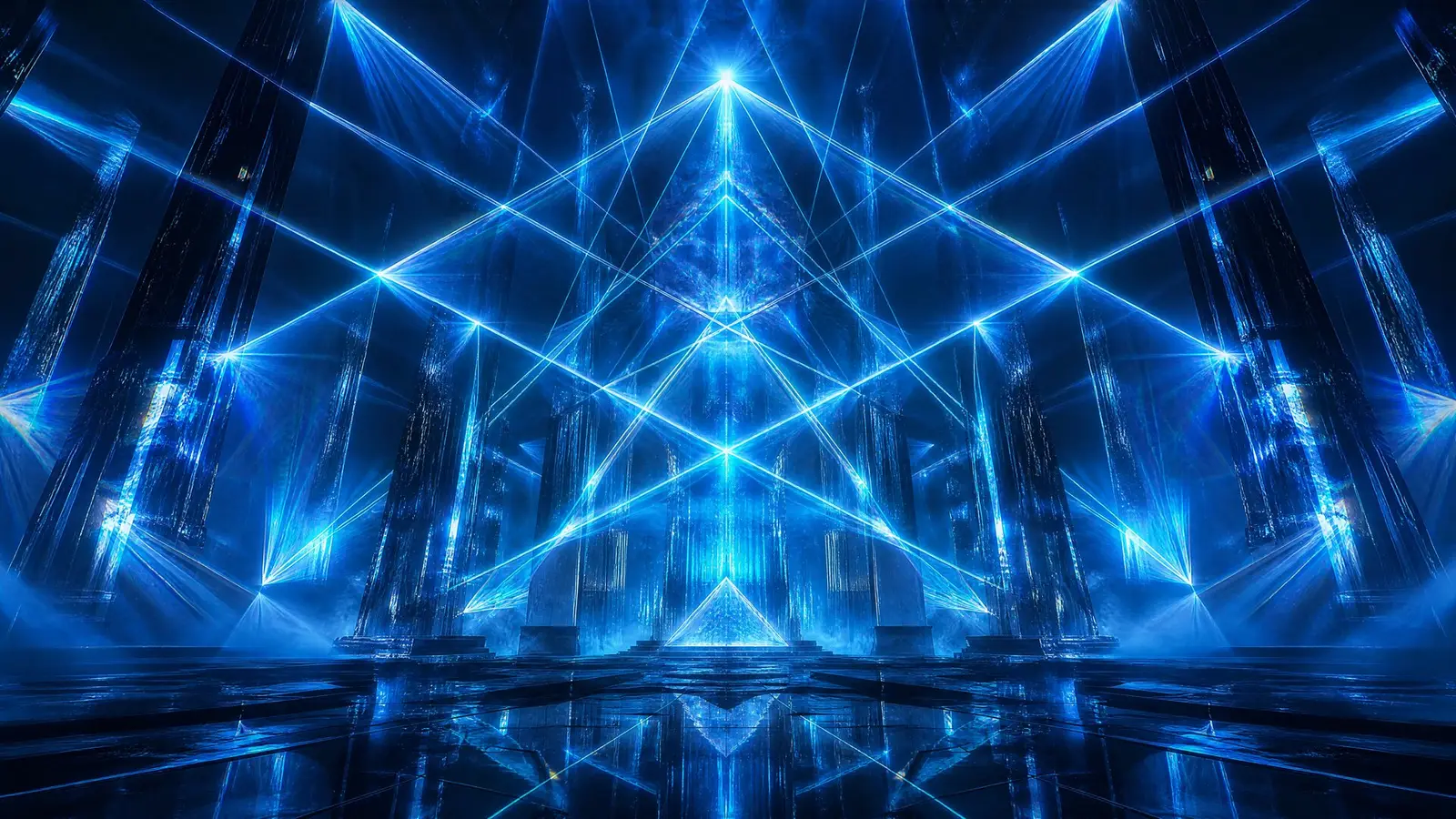
GPT Image 2 stillGenerated with GPT Image 2 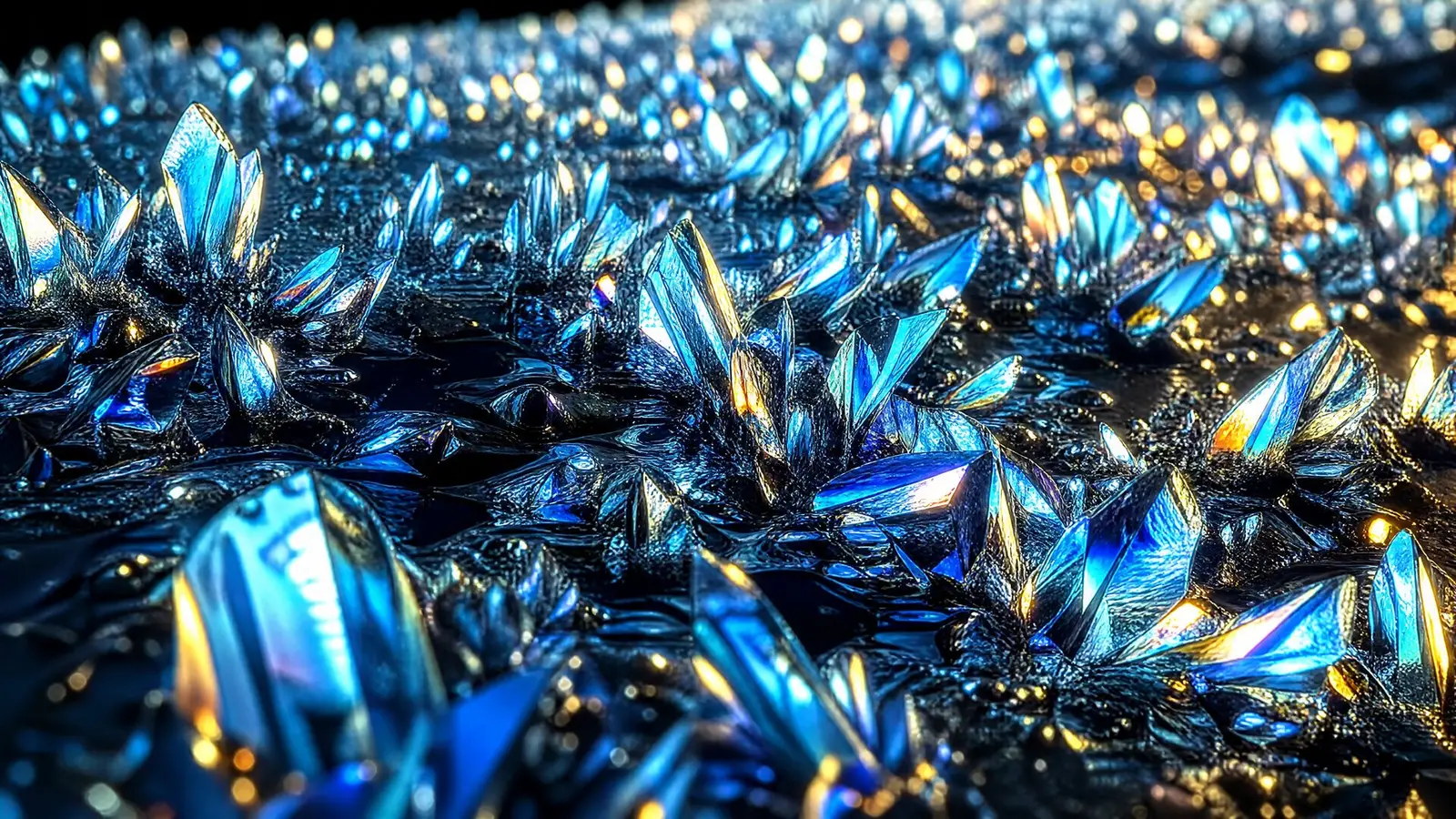
GPT Image 2 stillGenerated with GPT Image 2 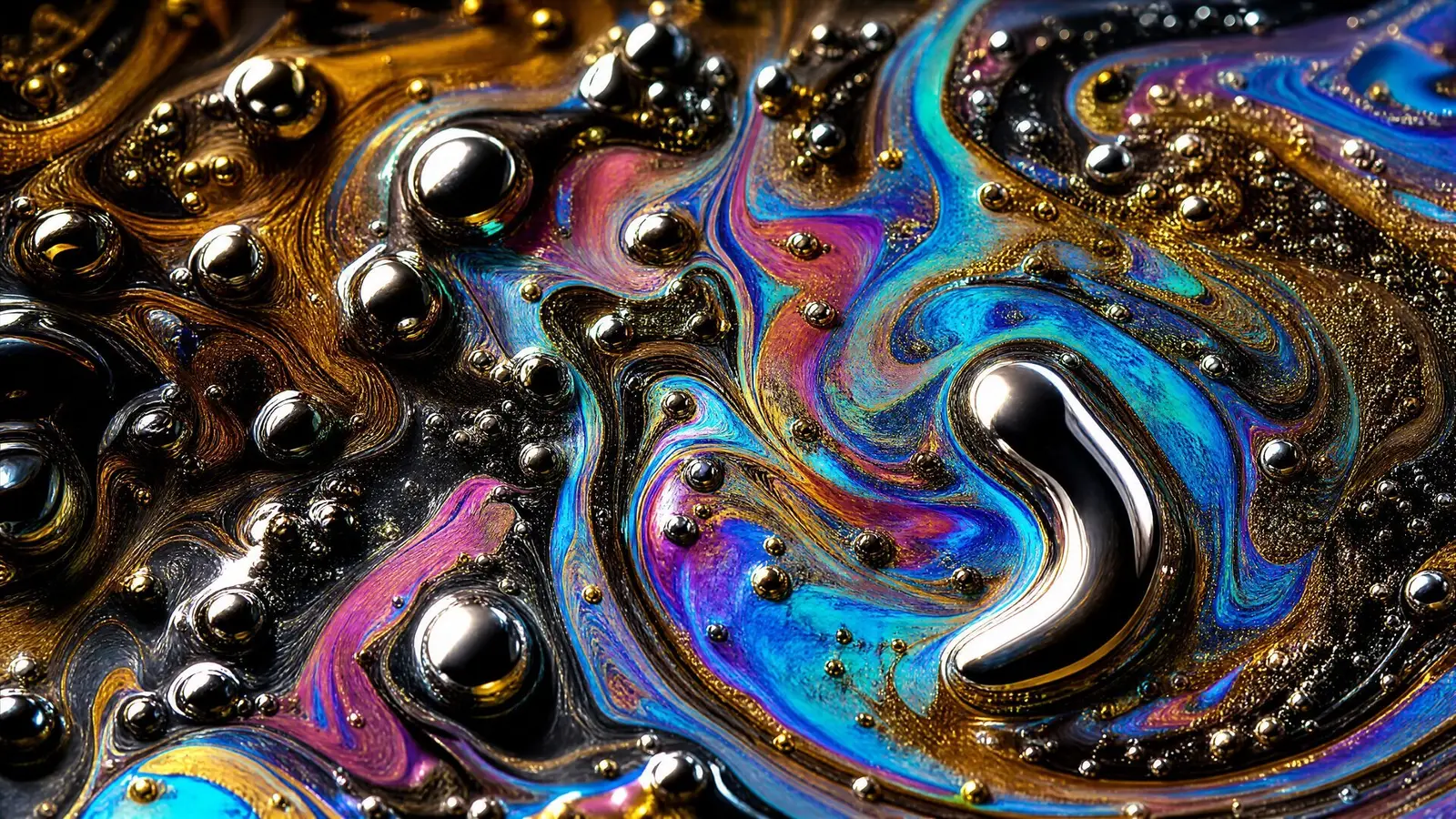
GPT Image 2 stillGenerated with GPT Image 2
About GPT Image
GPT Image is OpenAI's image generation model family. It generates and edits images from text, with the 2.5 models adding faster and higher-precision tiers.
On Everygen you can run 3 GPT Image models from the same image generator as every other model, with one credit balance and no separate OpenAI account. Output goes up to 4K, from 1 credit a run. You can also ask Creator to plan a whole set of images and choose the model for each step.
How to use GPT Image on Everygen
- 1
Open GPT Image 2.5 Sunburst
Open the image generator with GPT Image 2.5 Sunburst already selected, or pick any GPT Image model from the model menu.
- 2
Describe the picture
Write what you want to see, then attach reference images to keep a product, face or style consistent.
- 3
Check the price and generate
The exact credit cost shows before you start. Credits come with every Everygen plan.