AI video extender
Everygen extends a clip you made in Everygen: press Extend, say what happens next or leave it empty, and it adds a new shot of 1 to 30 seconds and returns one joined clip.




Trusted by creators with billions of views
Before and after extended in Everygen
- A walk into a waveSeedance 2 Mini, +5 seconds
- A product pourSeedance 2 Mini, +5 seconds
- Frost on the bottleThe same ad, another next shot
- LandscapeThe camera rises over the lake
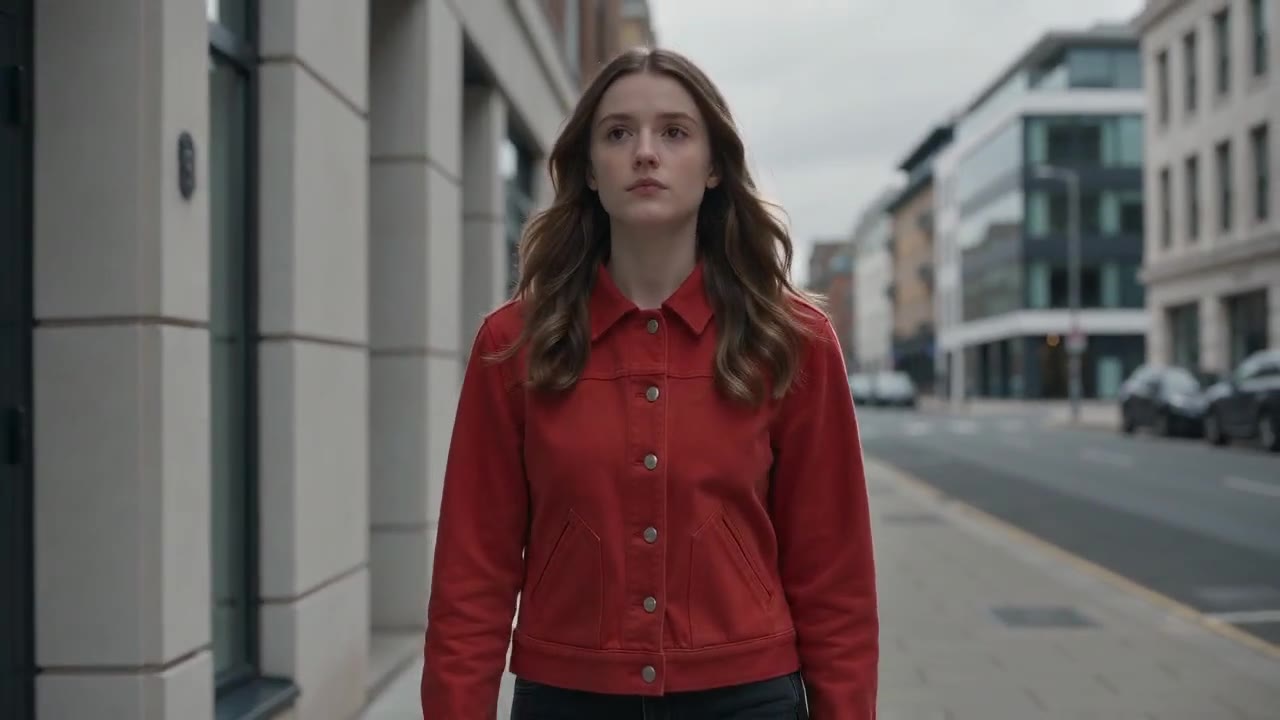
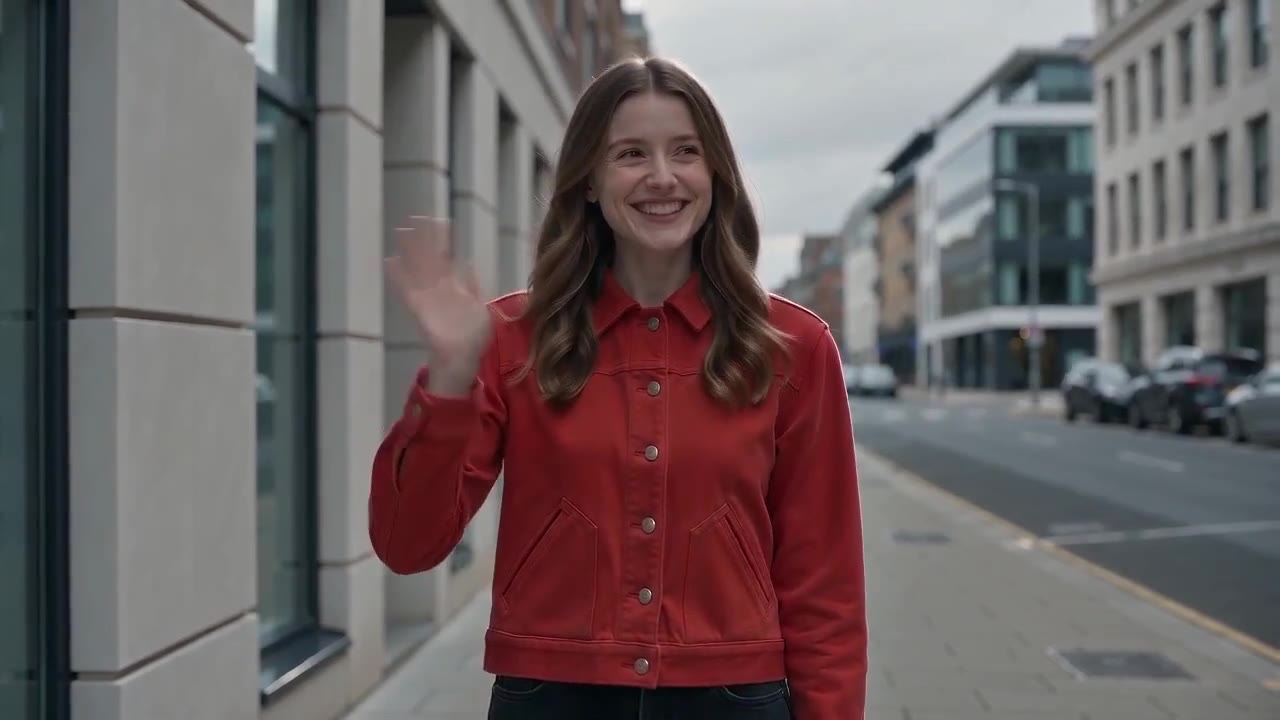



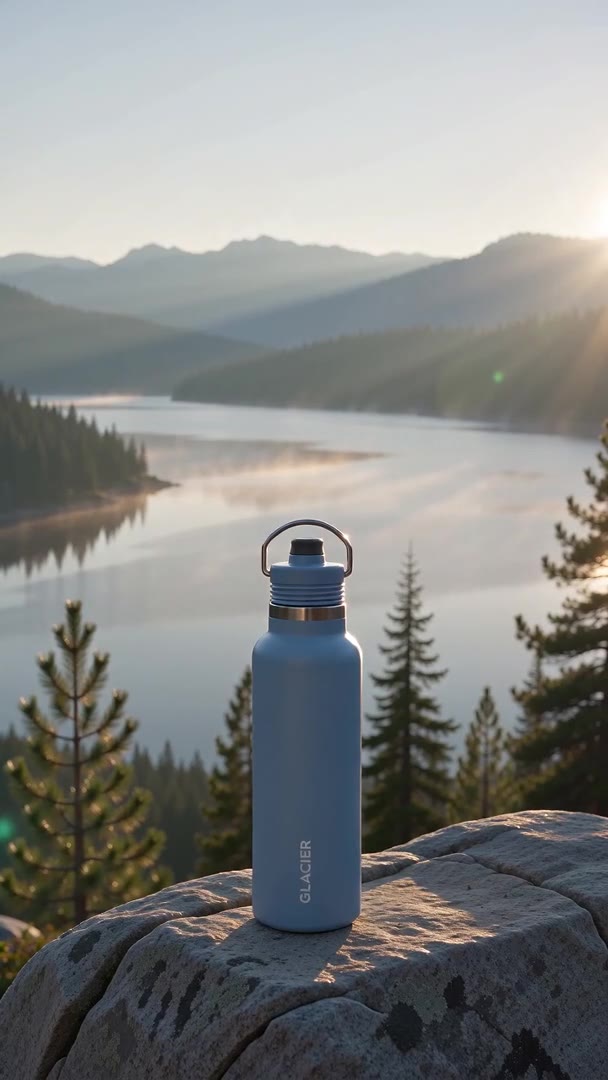
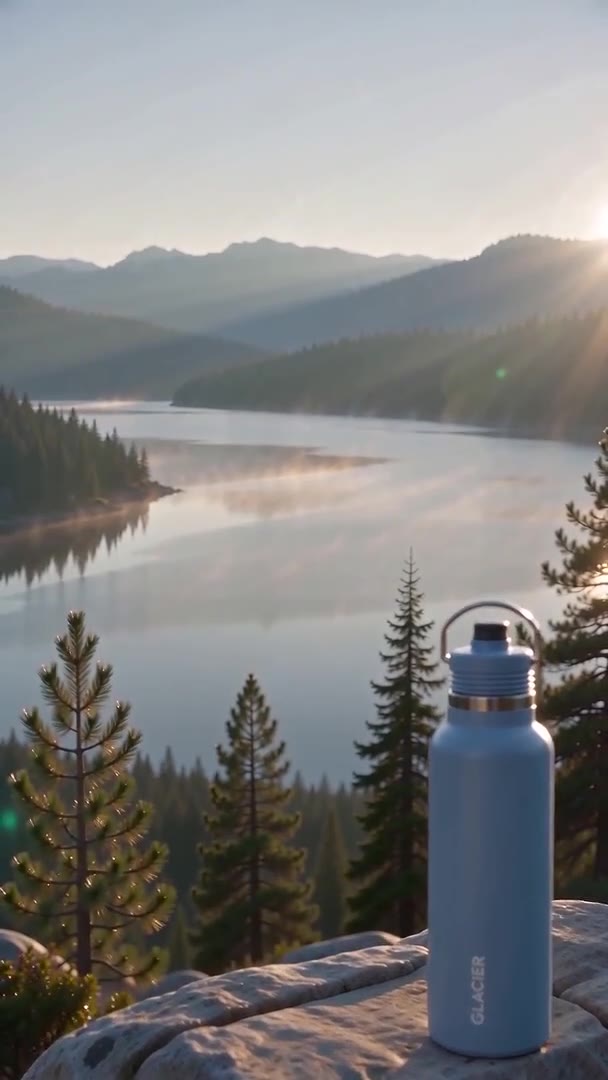
Each pair is one Everygen clip before and after Extend. In the first pair “after” is the whole file Extend returned, and the wave starts at about 9 seconds. The other three extend 10-second ads: “before” is their last 5 seconds, and “after” runs from 8 to 14 seconds of the extended file, across the join. The bottle’s brand is made up.
Extend at a glance
- Extend on 16 video modelsEvery model in the generator can extend.
- Up to 30 secondsA new shot on Seedance 2.5 Flash.
- Clips made in EverygenUploaded videos cannot be extended.
- Prompt optionalLeave it empty to carry the scene on.
- One joined clipThe new shot joins the end, no watermark.
- Same modelThe new shot keeps the clip's model and resolution.
- Returned if it failsA failed extension costs you nothing.

Extend adds one new shot after a finished clip, on the clip’s own model. It works with Seedance, Kling, Gemini Omni, MiniMax and Grok Imagine. Gemini Omni 1.1 Flash stops at 40 seconds in all. Read the limits
How it works in three parts
- 01
Pick up where the clip ends
Press Extend in a finished clip's menu. The 5 Seedance models continue from the clip's last seconds, Grok Imagine and Gemini Omni 1.1 Flash use their own extend, and the other 9 models start the new shot from the clip's last frame. The new shot stays on the clip's model.
Clip menuSame model16 models - 02
Say what happens next
Write one line about how the action goes on, or leave the box empty and the scene carries on. Here the line asked her to stop, smile and wave. She kept walking with no cut at the join, smiled, and waved with her right hand near the end.
Prompt optionalNo cut at the join - 03
Get one longer clip
Extend returns one file: the original clip with the new shot joined to its end, so this 5-second clip came back 10 seconds long, with no watermark. To keep the scene going, extend the longer clip again, one shot at a time.
One fileNo watermark
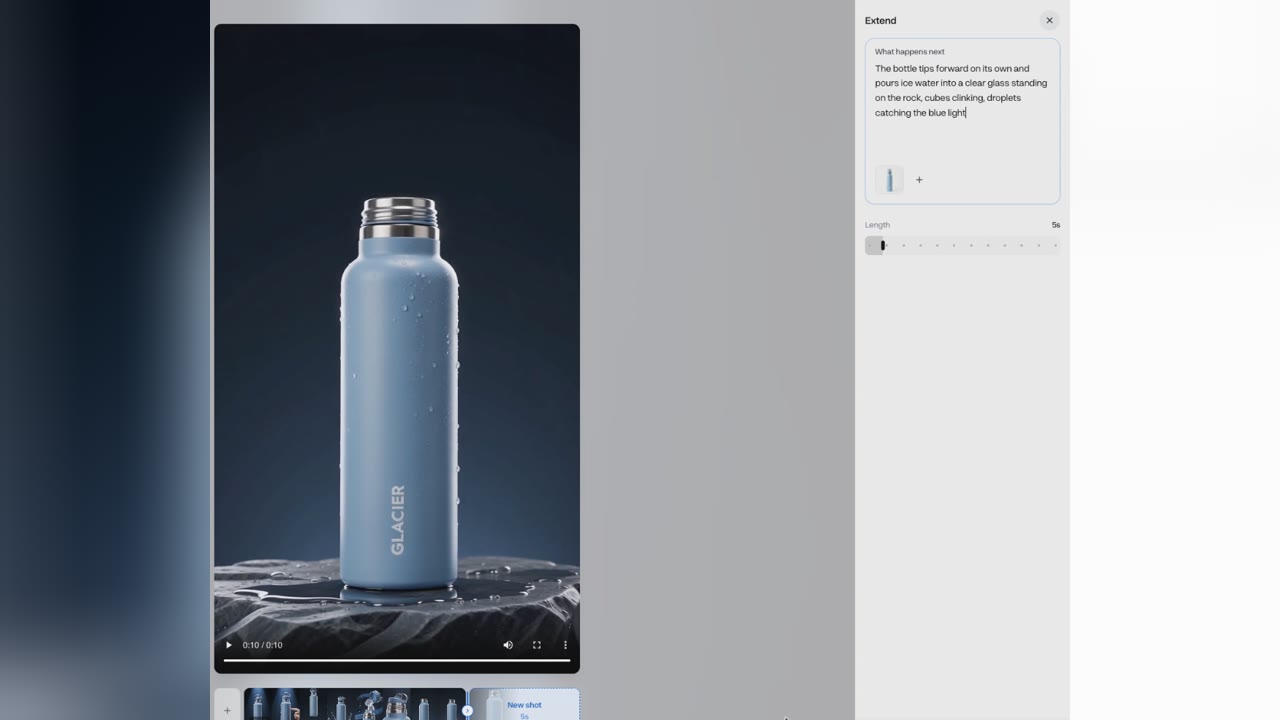
Extend a clip in 4 steps
- Step 1Make or open a clipAny video model in the generator.
- Step 2Press ExtendIn the finished clip's menu.
- Step 3Say what happens nextOr leave it empty to carry on.
- Step 4Get one longer clipThe new shot joins the end.

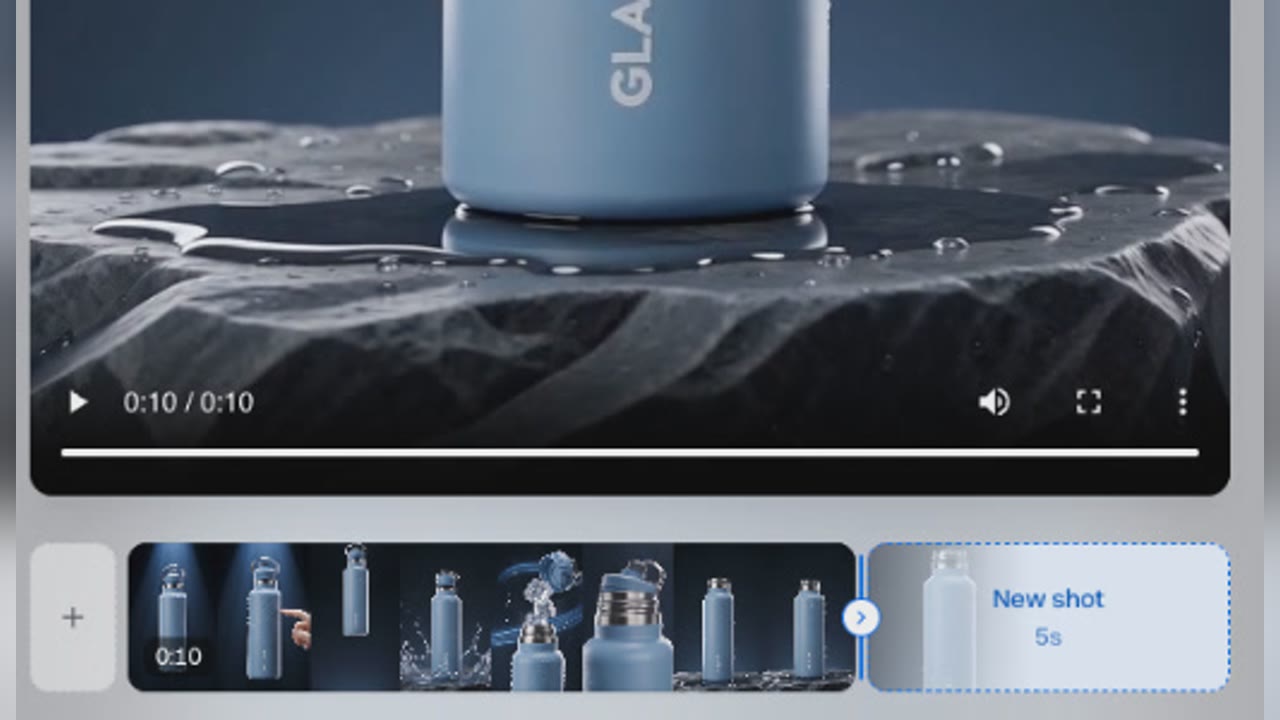
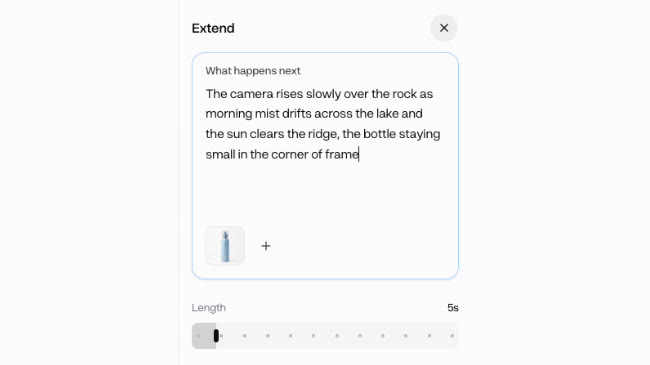
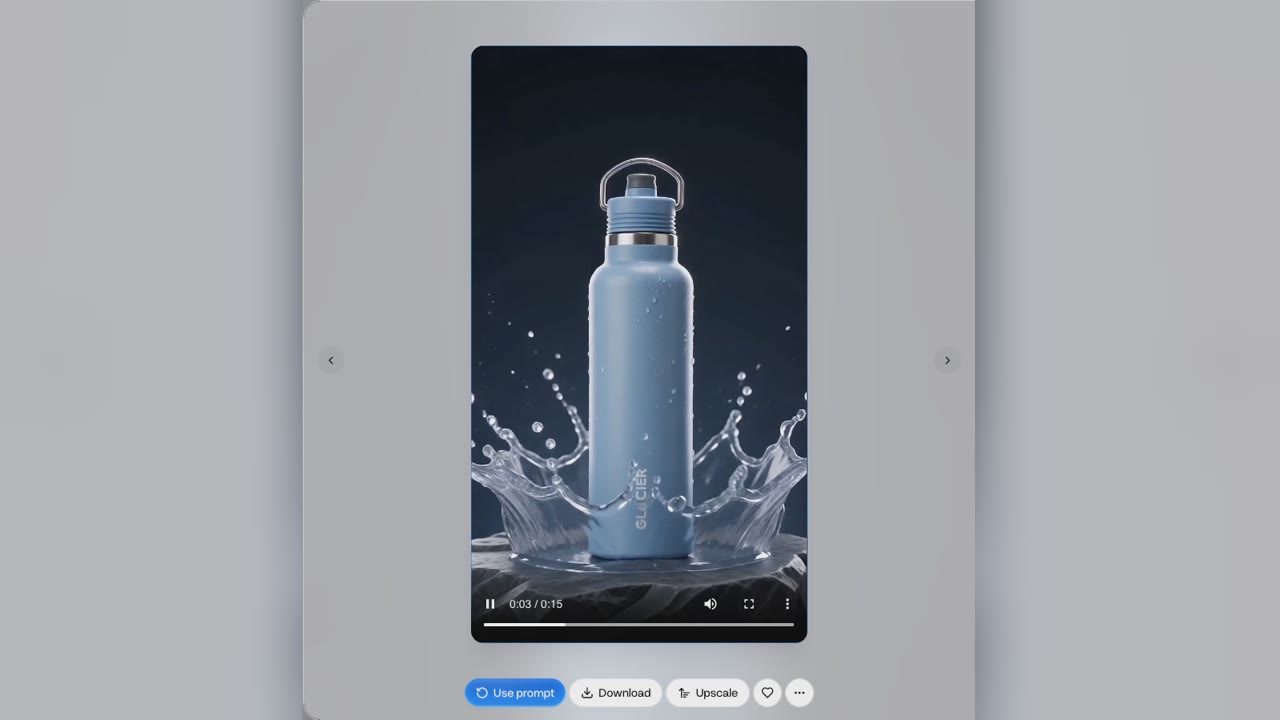
Only clips made in Everygen can be extended, because Extend continues from the model’s own clip. The panel’s length slider starts at 5 seconds.
Two next shots on the same ad
- A pour · 12 creditsA hand tips the bottle into a glass.
- Frost and snow · 12 creditsFrost creeps up from the base.
An extension is priced by the clip’s model, the clip’s length and the new shot’s length. Both are the same 10-second 720p Seedance 2 Mini ad extended by 5 seconds, with a different “what happens next” line; the Extend panel has no model picker, so the new shot is always on the clip’s own model.
- Starter$0.54 a 5-second extension of a 10-second Seedance 2 Mini clip, about 16 extensions a month
- Pro$0.46 a 5-second extension of a 10-second Seedance 2 Mini clip, about 41 extensions a month
Dollar figures are plan credits at the yearly price per month. The generator shows the exact credit price before you start.
Tips for a long scene that holds
- Extend one shot at a timeWatch each new shot before the next.
- Describe the next beatHow the action goes on, not a new scene.
- Leave it empty to carry onThe scene keeps going with no new direction.
- Check the join firstScrub the seconds around the 5-second mark.
- 40 seconds on Gemini OmniThe clip and its extensions stop there.
- Grok clips of 2 to 15 secondsGrok Imagine extends clips in that range.
A long scene holds together best when each new shot continues the action of the last. You keep the rights to what you make in Everygen.
Extend, don't loop, slow or cut
- LoopLoop the clipThe same motion repeats, and viewers spot it.
- SlowSlow it downStretches the same motion over more seconds.
- CutMake a new clip and cutA hard cut, and the look can change.
- ExtendExtend a clipExtend itAdds a new shot after the clip ends.


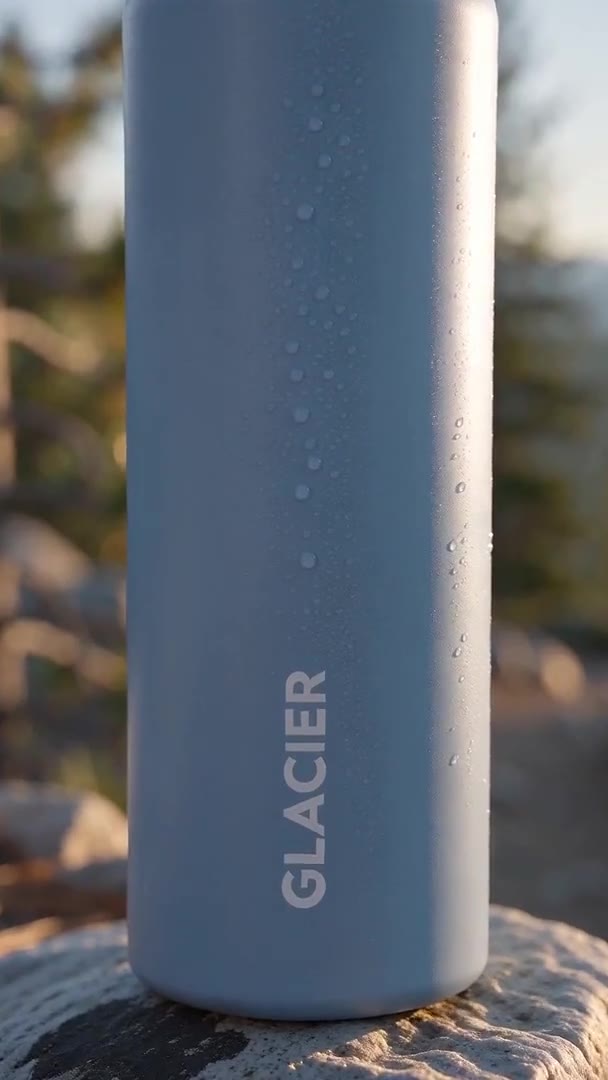
To make an AI video longer without a hard cut, extend it. The new shot starts where the clip ends, so the product, the place and the light carry on. The loop, slow and cut cards are illustrations made from the bottle ad, not Extend runs.
Then caption it in one of 33 styles





Once the scene is long enough to post, open it in Auto Captions and pick one of its 33 styles. These five are stills of real Auto Captions styles.
What people use it for on their own clips
- Short filmExtend a clipMake a scene longer than one shotCarry the action on, shot by shot.
- AdsAdd the ending a clip was missingA reaction, a wave or a reveal.
- ShortsReach the length a post needsAdd seconds instead of starting again.
Extend when the clip is right but too short. Make the first shot in the video generator, then extend it until the scene is done.