
Remove subtitles and captions from video
Everygen Caption Remover erases burned-in captions, subtitles and on-screen text from a video: upload an MP4, MOV or WebM up to 60 seconds, box the text, and download a clean clip for 3 credits.





Trusted by creators with billions of views
Before and after made in Everygen
- TikTok captionsEverygen HD, one box
- SubtitlesTalking head
- Ad hookProduct ad
- Meme textTwo passes
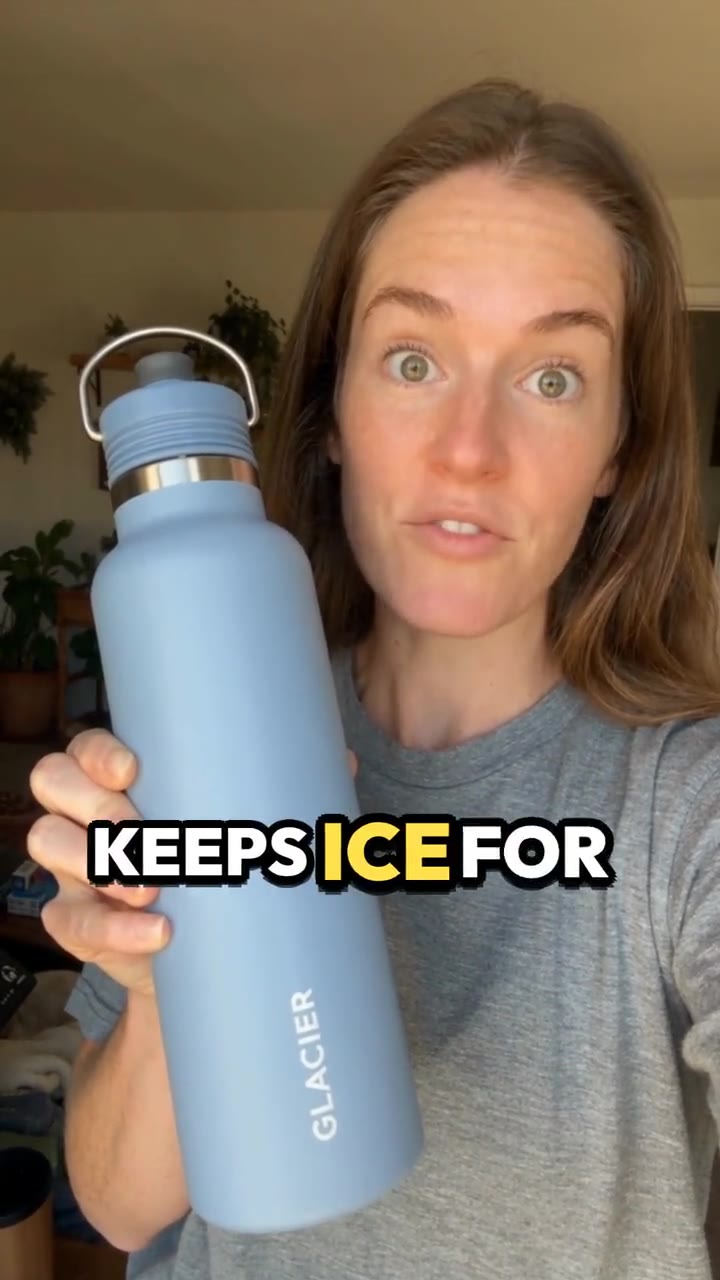
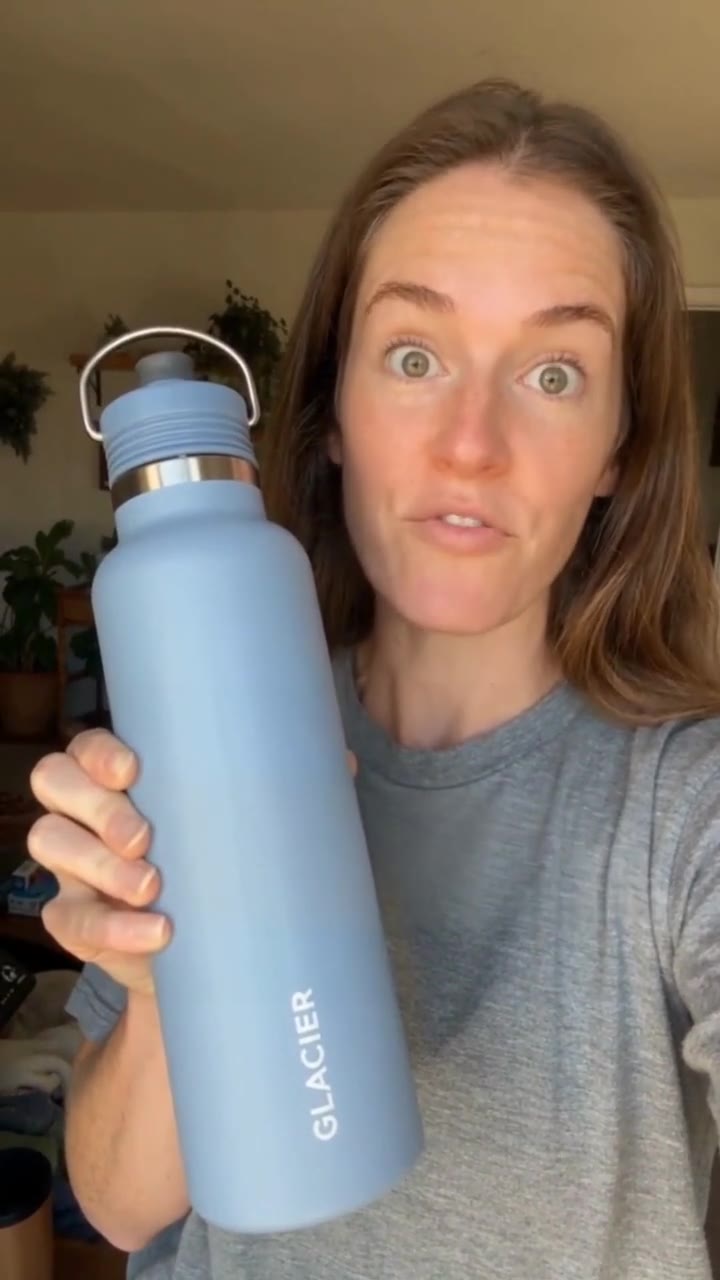
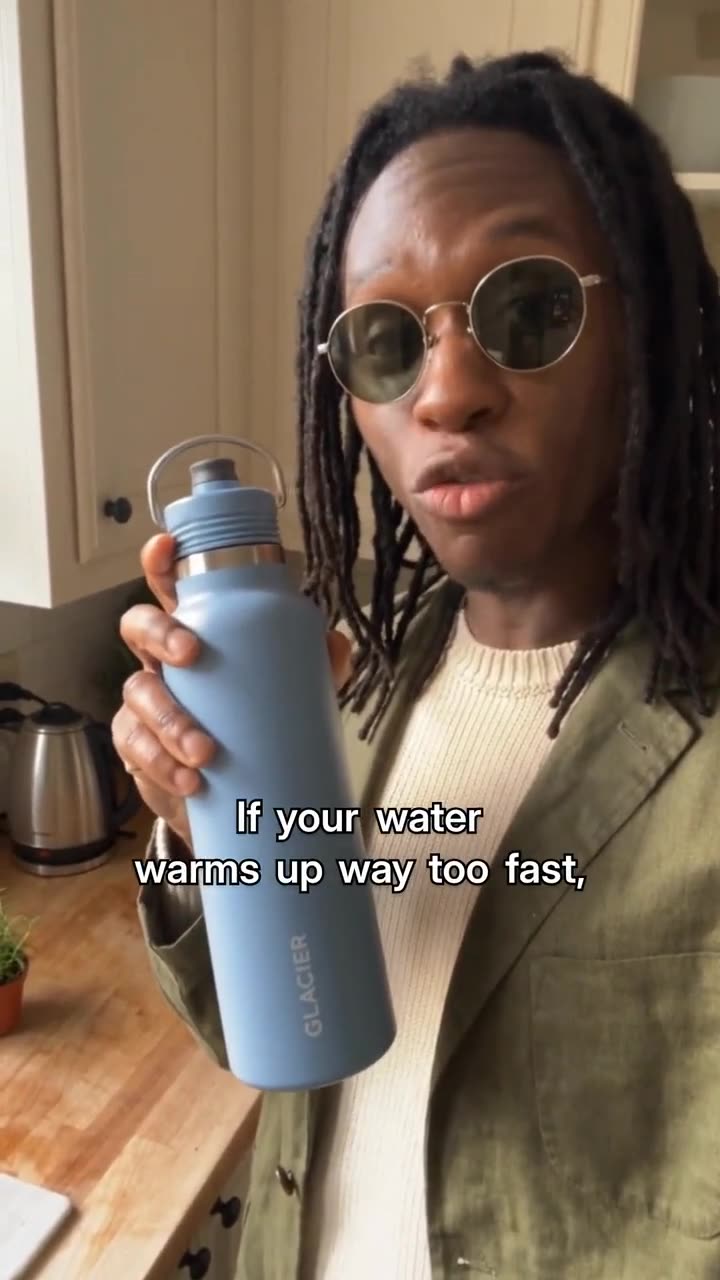
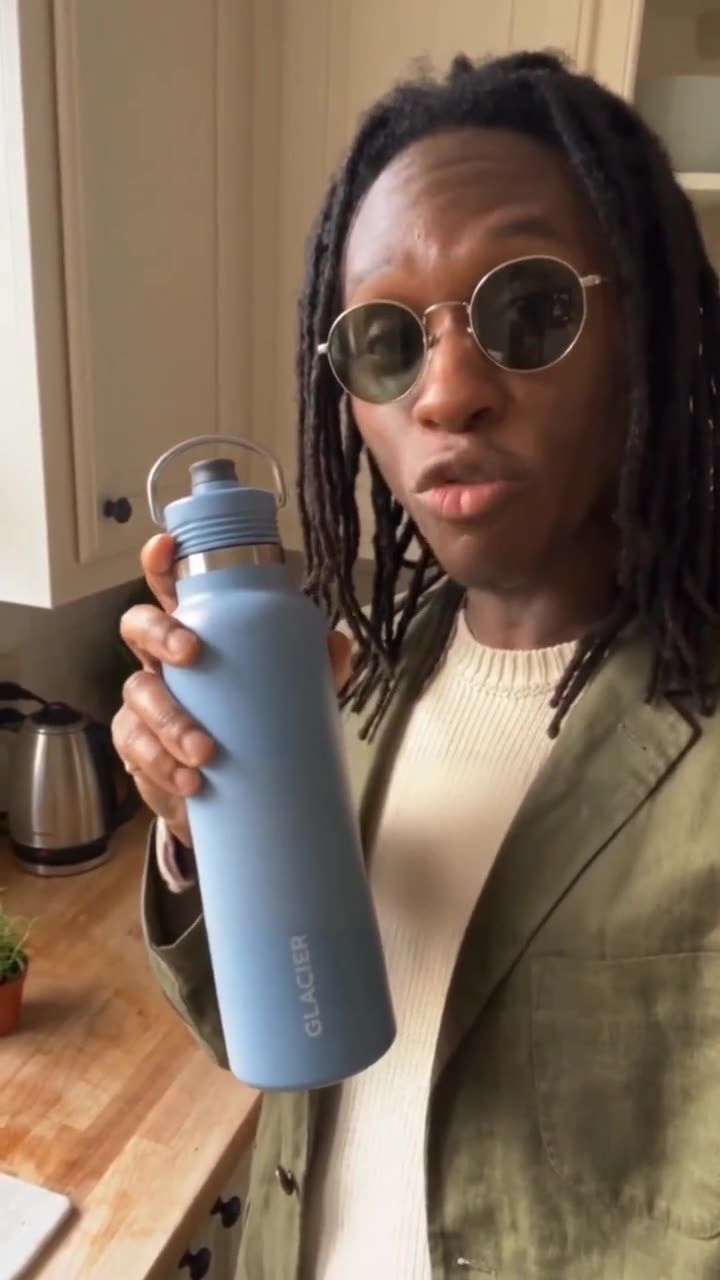
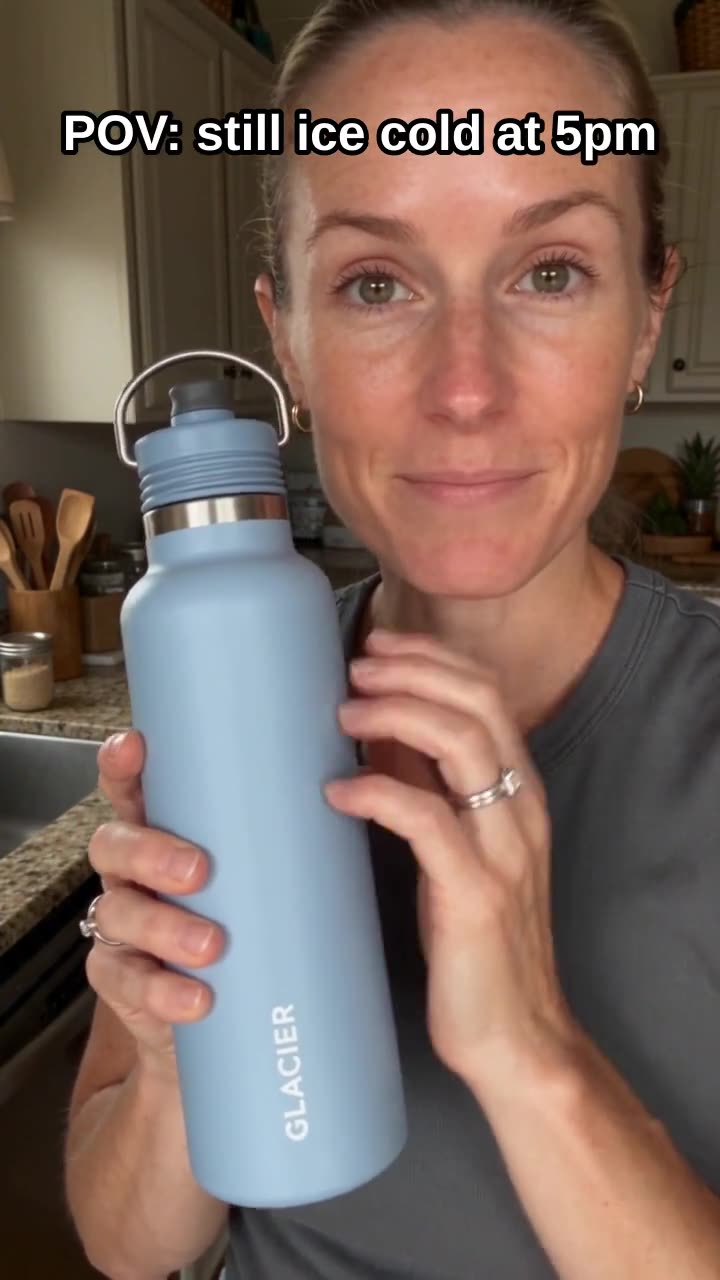
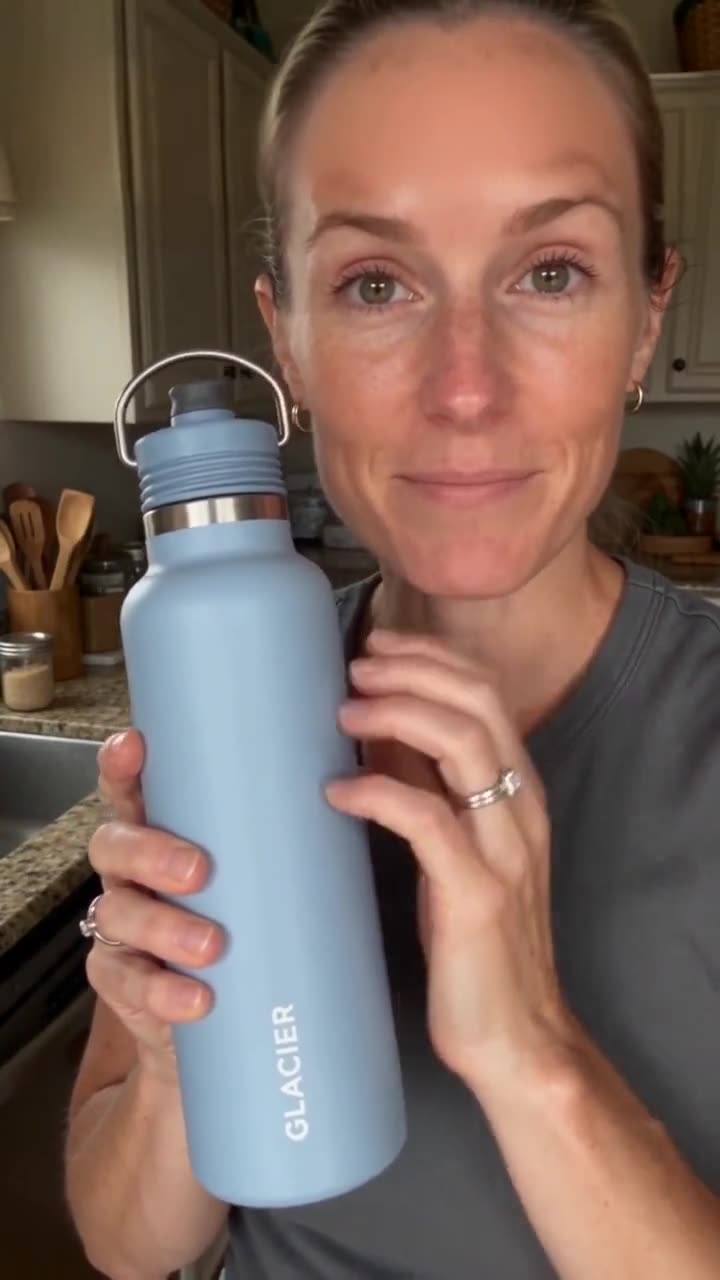


Each pair is one Everygen clip before and after Caption Remover. The subtitles came from Auto Captions; the ad hook and the meme text were added for the test. The meme took two runs, one box for the top line and one for the bottom.
Caption Remover at a glance
- Clean clips for TikTok, Shorts and ReelsMove your own clips between platforms.
- 60 secondsThe longest video per run.
- 30 MBThe largest file the upload takes.
- MP4, MOV, WebMOne file per run.
- MP4 outDownloads clean, with no watermark.
- Everygen TurboFor text over a plain background.
- Everygen HDFor text over faces or busy detail.

One box per run, and it stays in place for the whole clip. Caption Remover takes out burned-in text, the words that are part of the picture, not a subtitle track you can switch off. Read the limits
How it works in three parts
- 01
Find the text
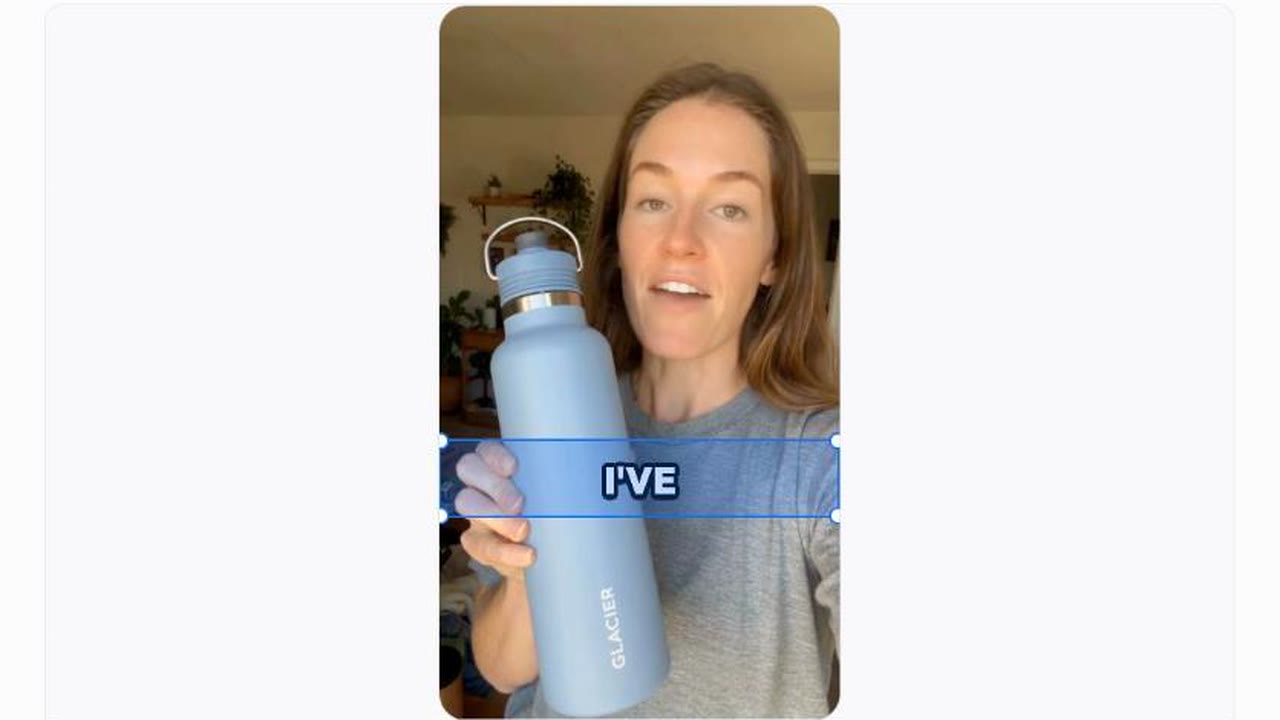
Draw one box over the text on a frame of the video. It covers 5% to 30% of the frame. The box stays in the same place on every frame, so for captions that move, draw it over the whole area they use.
One box5% to 30% of the frameSame place every frame - BeforeAfter02
Rebuild what's behind it
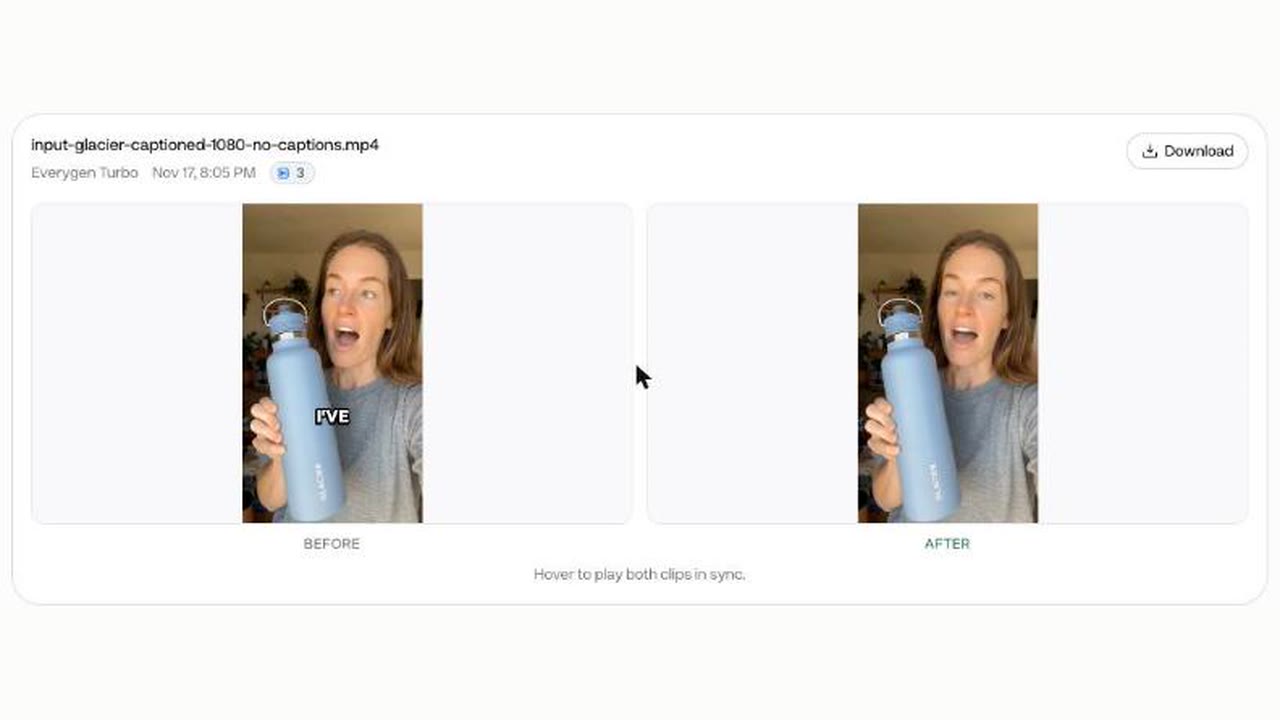
Inside the box, Everygen paints the text out and fills the gap with the picture around it. In this clip her fingers, the bottle and her t-shirt were filled in. Plain backgrounds come back cleanest; check faces and fine print under the text.
Filled, not blurredWatched on this clip - 03
Get a clean MP4
When the run finishes, the clean clip downloads as an MP4 with no watermark. It can come back at a lower resolution than a sharp upload, so keep your original. Anything else inside the box, such as print on a product, goes with the captions.
MP4No watermark
Remove captions in 4 steps
- Step 1Upload the videoAn MP4, MOV or WebM file, up to 60 seconds.
- Step 2Box the textDrag a box over the captions, off faces.
- Step 3Pick Turbo or HDTurbo for plain backgrounds, HD for faces and detail.
- Step 4Download the clean clipSave the MP4 and check where the text was.
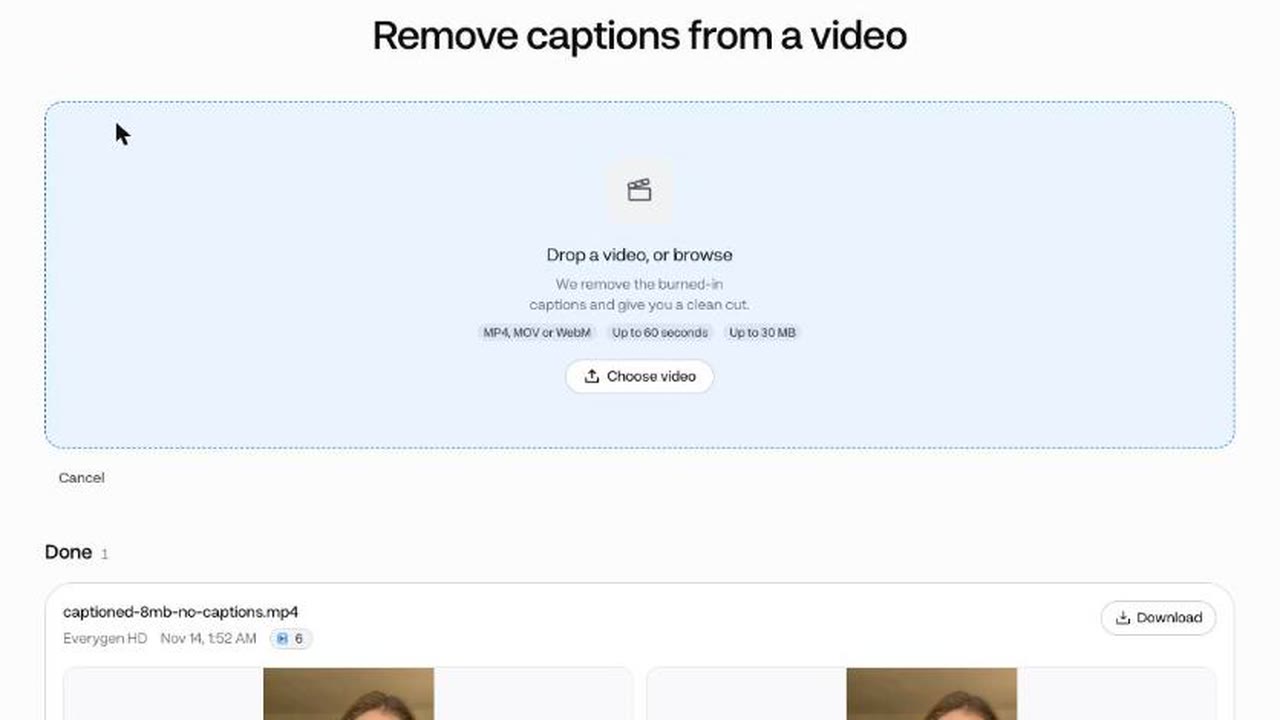
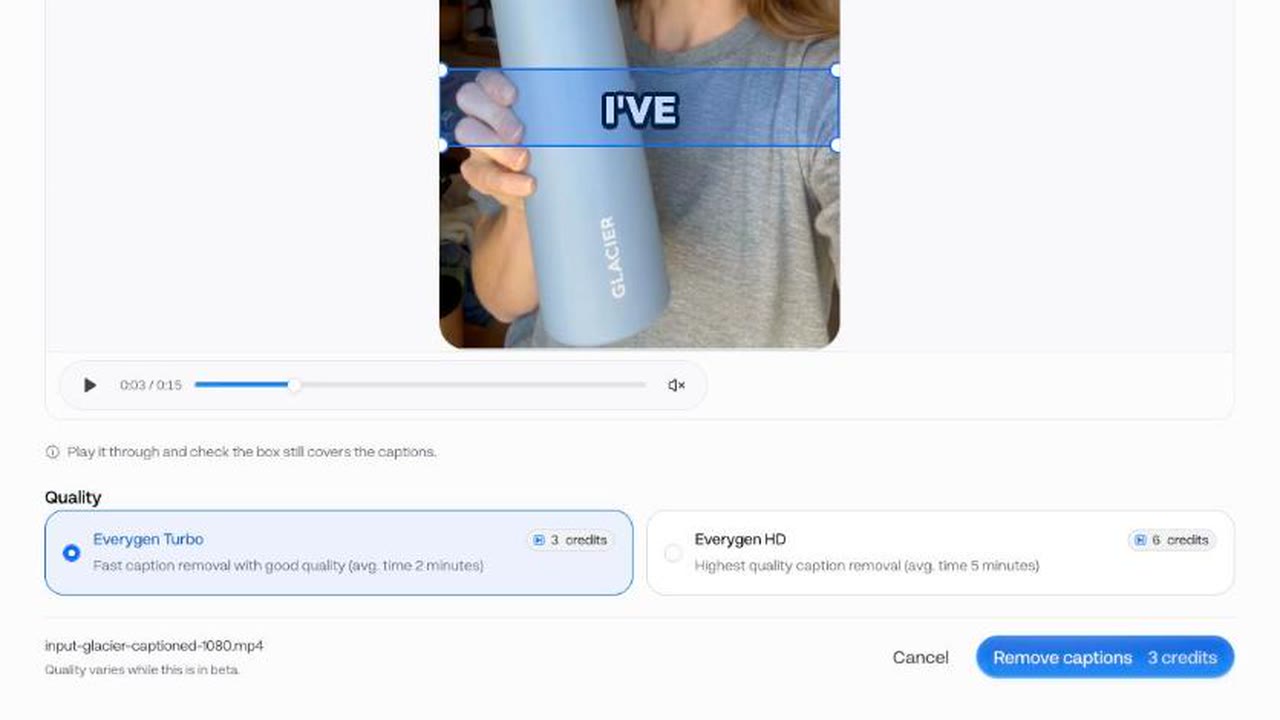
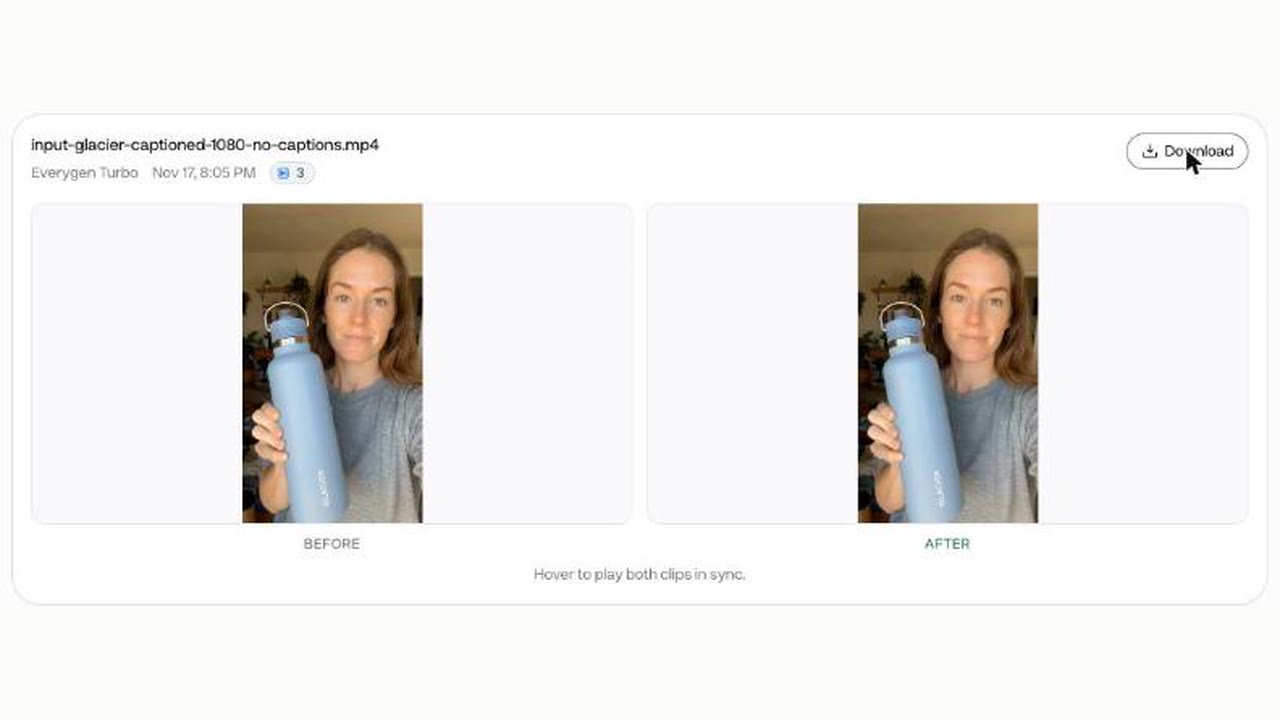
The box covers 5% to 30% of the frame. Files go up to 30 MB, so export a lighter copy of a large clip first.
Turbo or HD on the same clip
- Everygen Turbo · 3 creditsThe same clip, cleared with Turbo.
- Everygen HD · 6 creditsThe same clip: the run at the top.
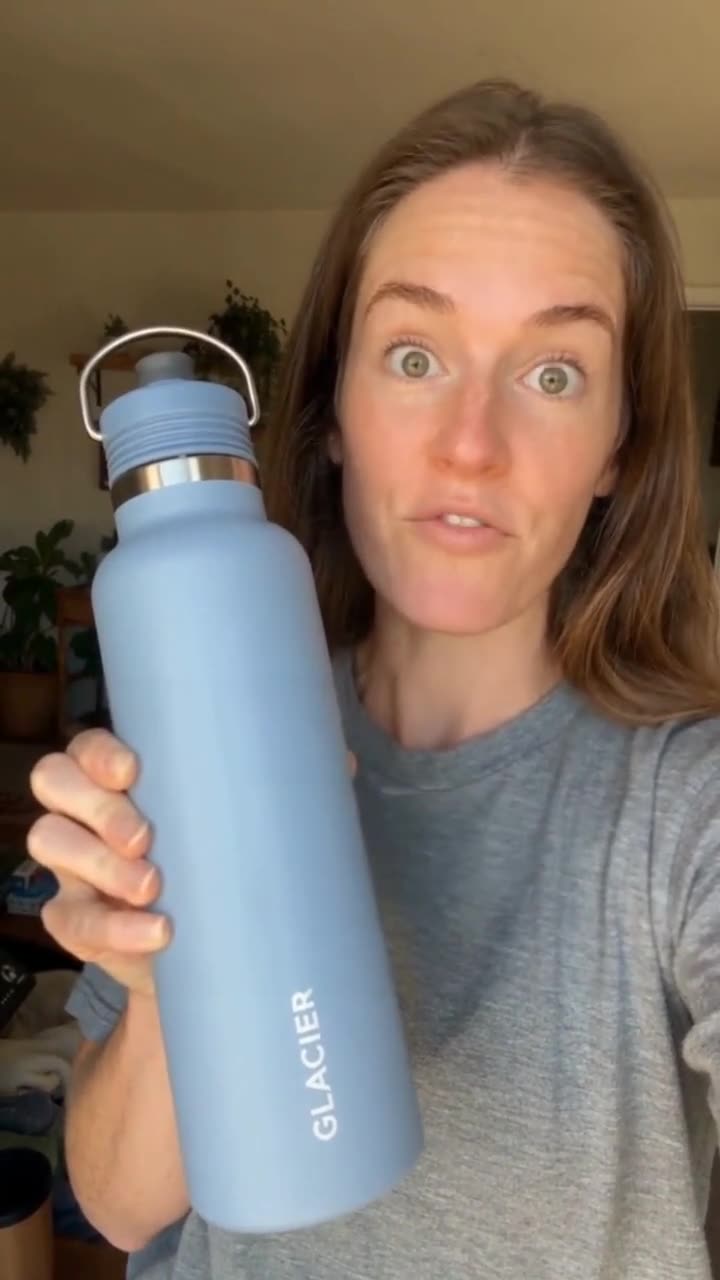
Start with Everygen Turbo for captions over a plain wall, sky or desk. Use Everygen HD when the text crosses a face, hands or moving detail. On this clip both cleared the captions; Turbo left a faint light patch on her t-shirt near the end. Each run is priced per video, whatever its length up to 60 seconds.
- Starter$0.14 a video with Turbo, about 66 videos a month
- Pro$0.11 a video with Turbo, about 166 videos a month
Dollar figures are plan credits at the yearly price per month. The generator shows the exact credit price before you start.
Tips for a clean result
- Box only the caption bandA tight box keeps more of the original picture.
- Keep the box off facesIf text crosses a face, box only the text and use HD.
- Split long videosCut clips over 60 seconds into parts, then rejoin them.
- Run a second passText in two places takes two runs, one box each.
- Cover the whole pathFor moving text, box the whole path it takes.
- Use footage you can editRemove text only from video you made or may edit.
The fill rebuilds whatever sits inside the box, so the smaller the box, the more of the original picture you keep. You keep the rights to what you make in Everygen.
Remove, don't blur, crop or cover
- BlurBlur the captionsLeaves a smeared band viewers still notice.
- CropCrop them offCuts picture away, so the clip no longer fills 9:16.
- CoverCover them with a barAdds a block every new caption has to sit on.
- RemoveRemove captionsRemove themPaints the text out and keeps the full frame.
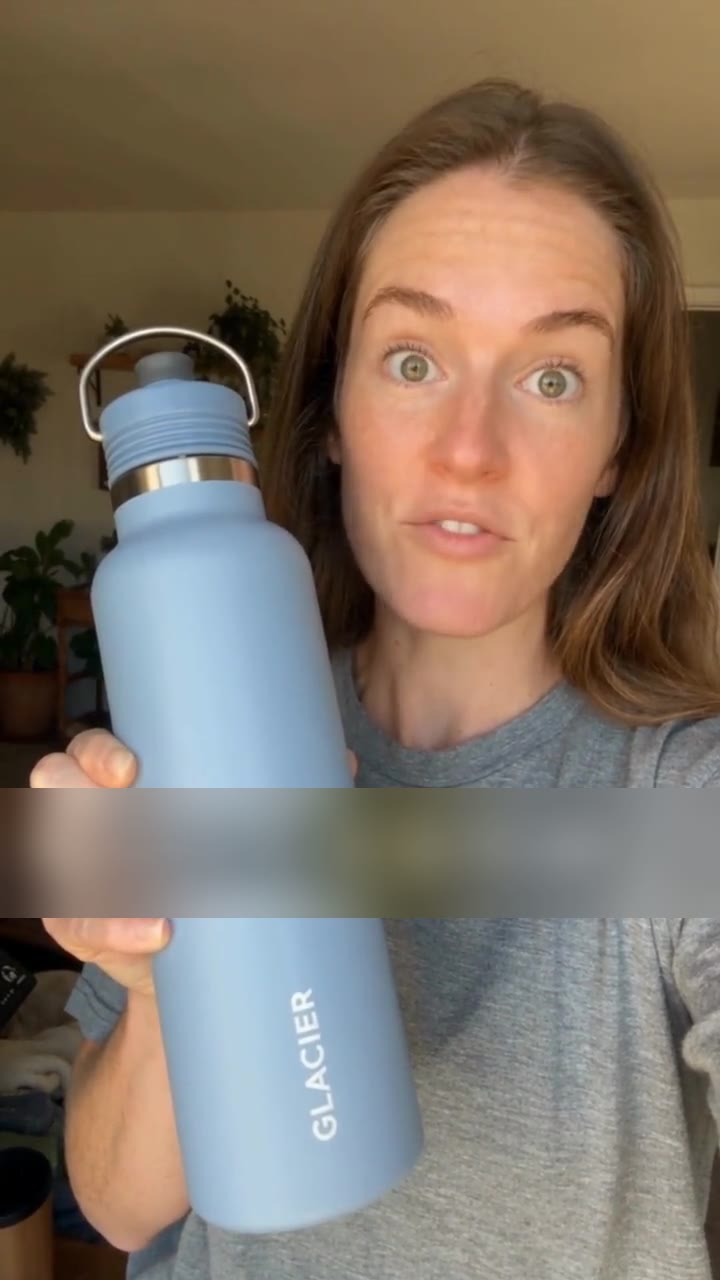
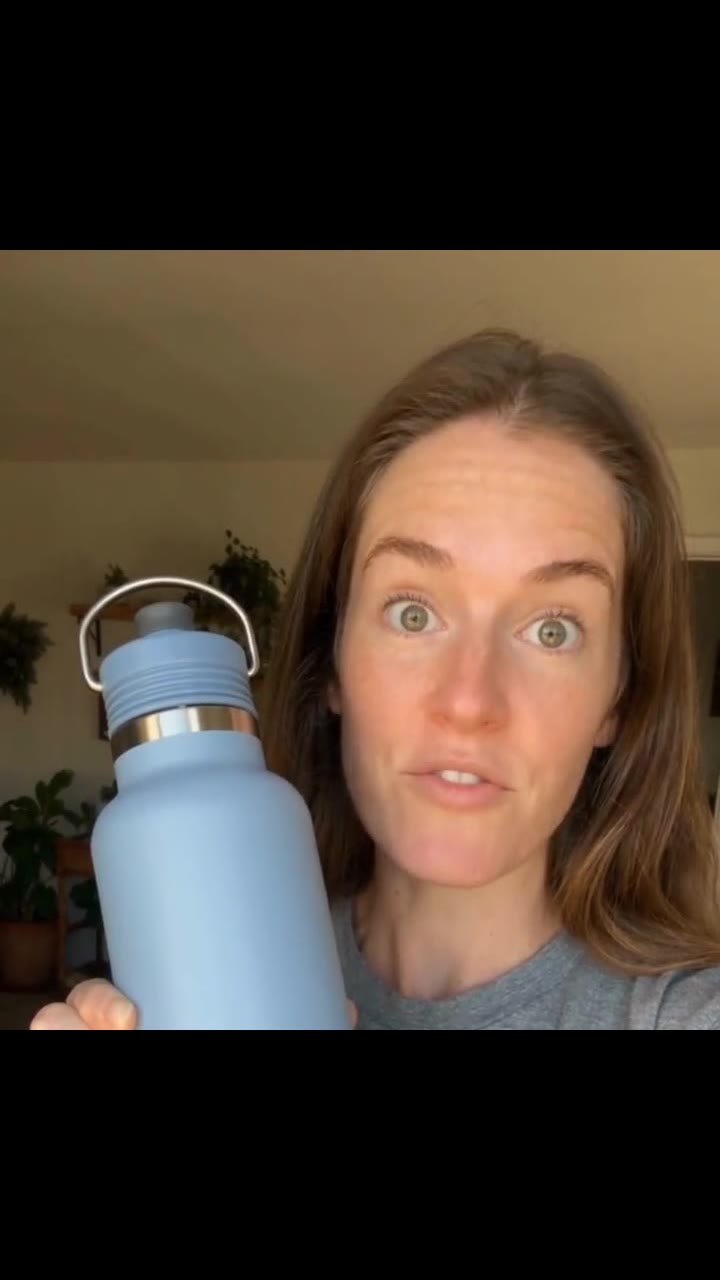
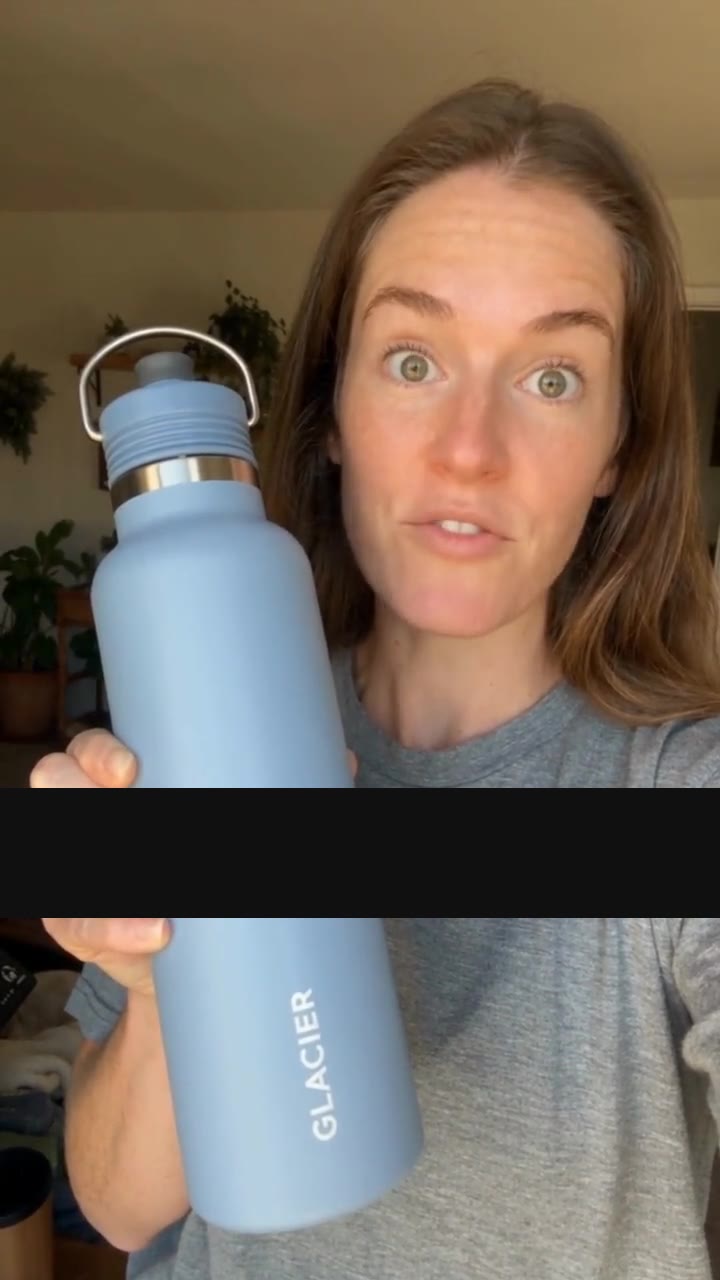
To remove burned-in subtitles without blurring or cropping, box them in Caption Remover. The filled clip keeps the whole 9:16 frame, so it still fits Shorts, TikTok and Reels with no band, bar or crop.
Then re-caption it in one of 33 styles




Open the clean clip in Auto Captions and pick one of its 33 styles. These five are stills of real Auto Captions styles.
What people use it for on their own clips
- TikTok to ShortsRemove captionsRepost a TikTok to ShortsSwap TikTok-styled captions for your YouTube style.
- AdsTest new copy on an adChange a tired hook line without shooting again.
- B-rollClean b-roll for an editClear old words so the clip fits a new voiceover.
Remove the old captions, then add new ones with Auto Captions. Save your own clip from YouTube or TikTok with Video Downloader first.