Image to video
Upload a photo, describe how it should move, and Everygen turns it into a video clip with Seedance, Kling, Gemini Omni, MiniMax and Grok Imagine, from 1 to 30 seconds and up to 4K.





Trusted by creators with billions of views
Photo and clip made in Everygen
- PortraitA laugh and a small wave
- Product shotBlowing snow and a sun flare
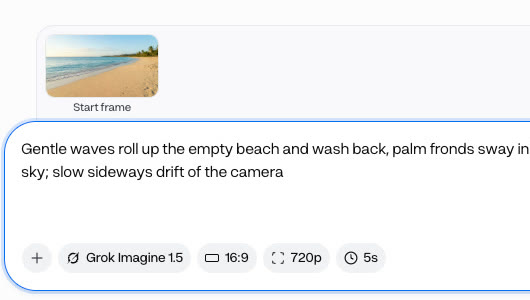
- LandscapeWaves, palms and gulls
- PetIt stands and walks to camera
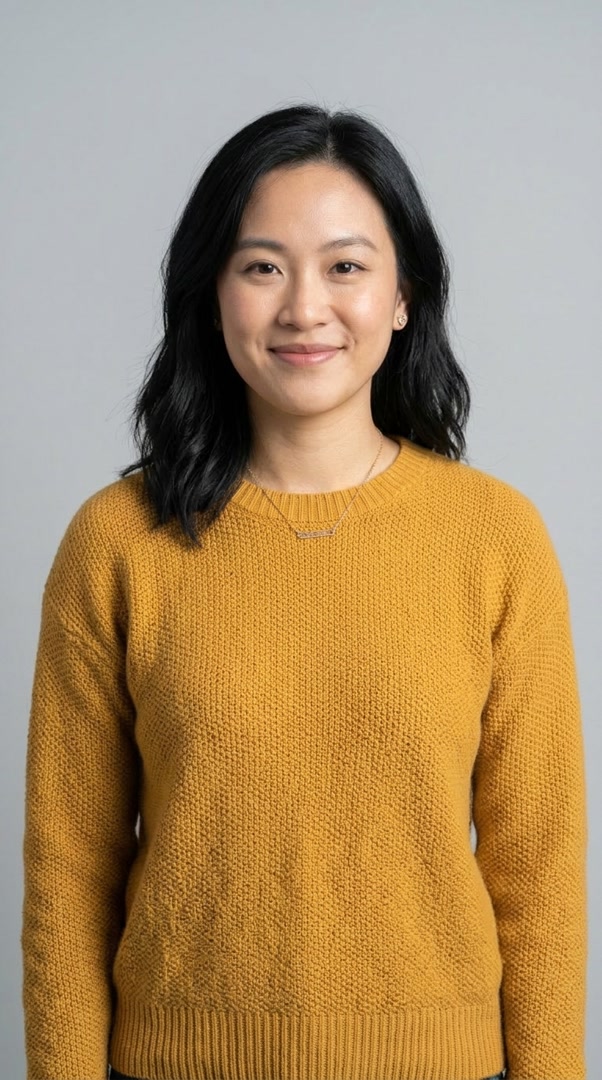

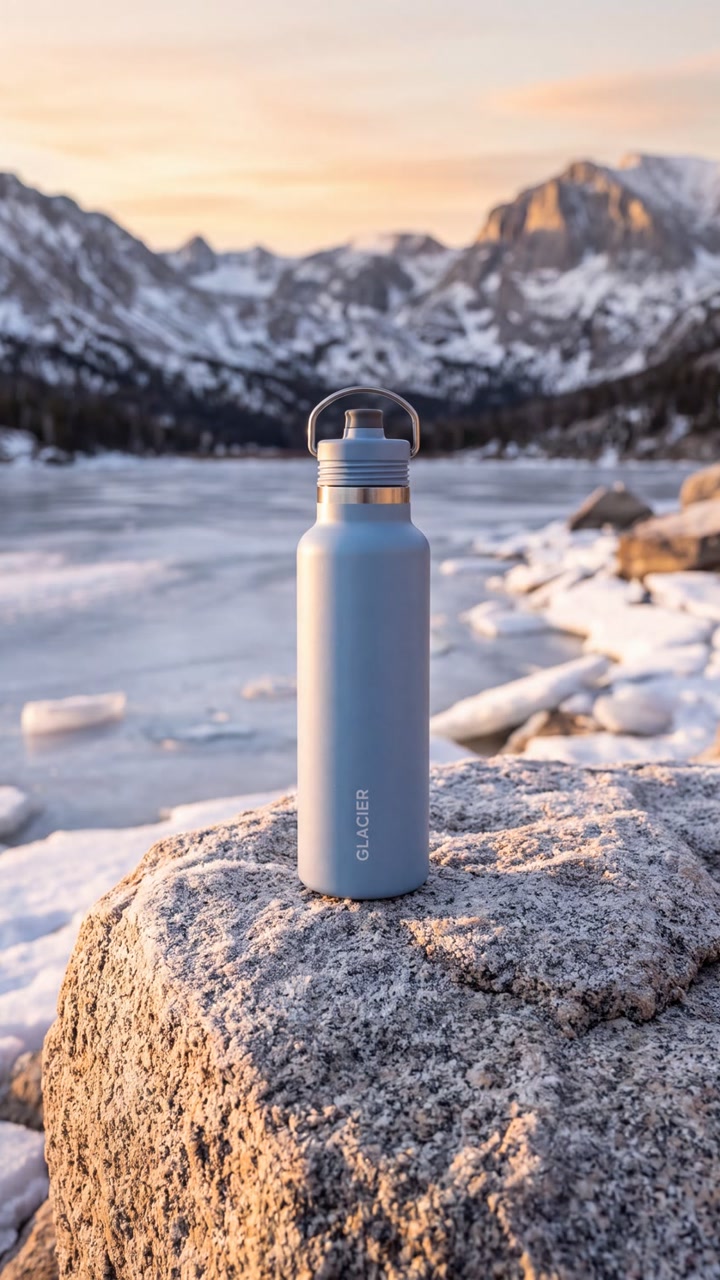
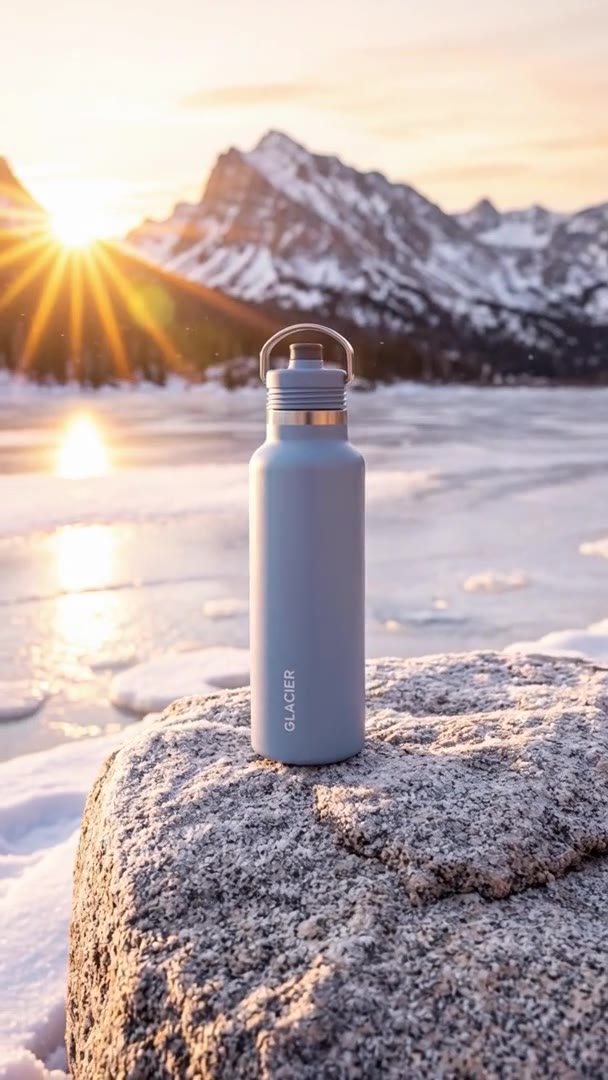


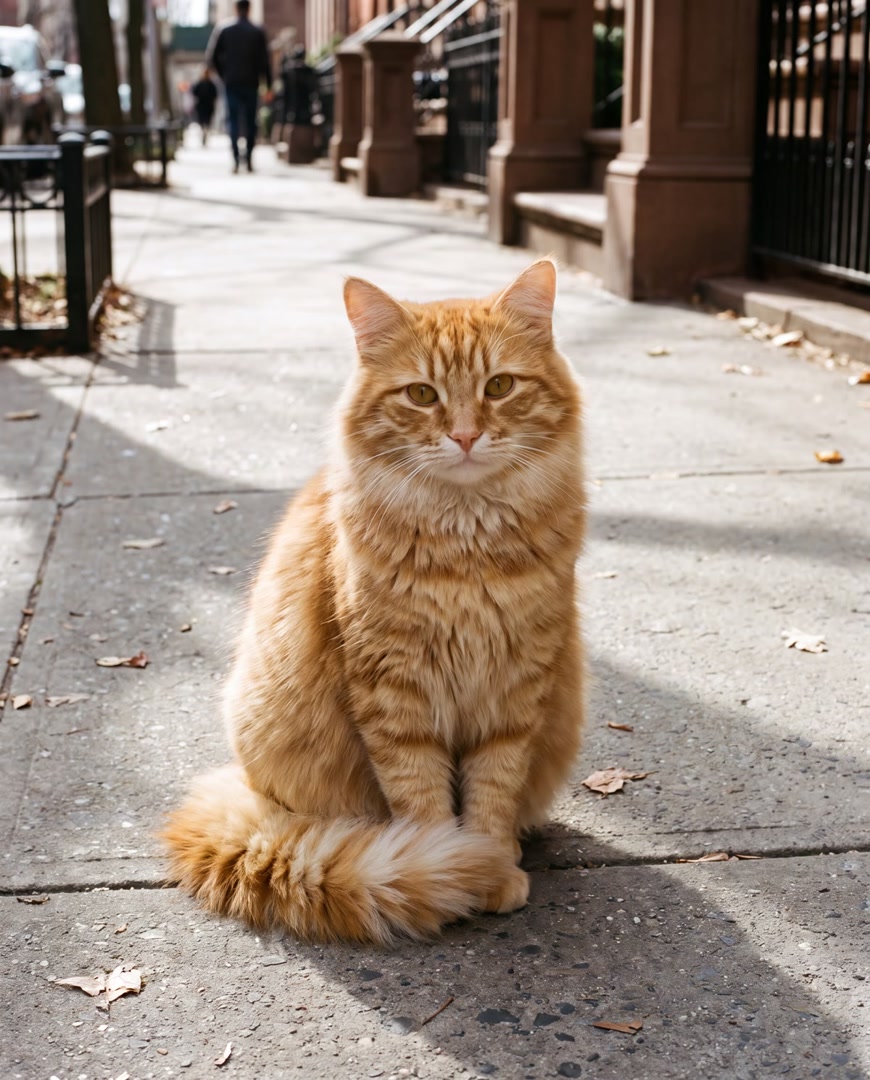
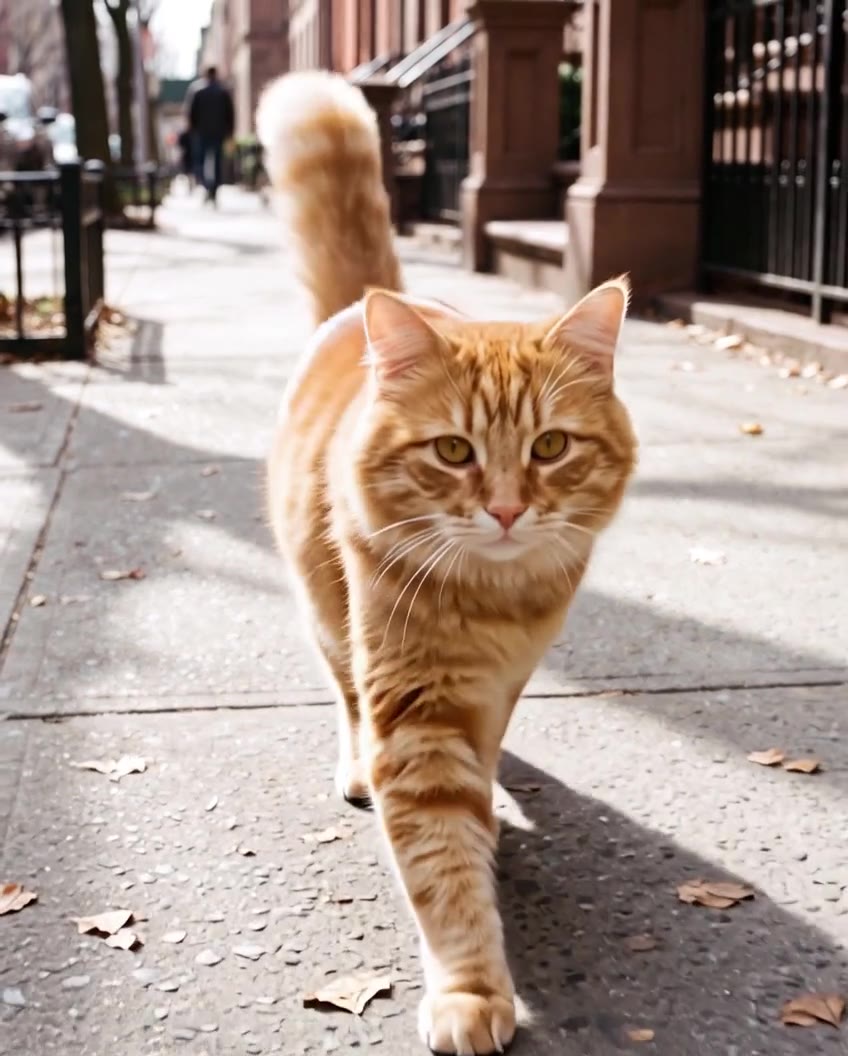
“Before” is the photo; “after” is the clip Everygen made from it. Each clip opens on its exact photo, and the prompt says only how things move. All four are 5-second Grok Imagine 1.5 clips; the bottle’s brand is made up.
Image to video at a glance
- Animate a photo on 16 modelsSeedance, Kling, Gemini Omni, MiniMax and Grok Imagine.
- 16 modelsEvery video model takes a photo.
- 1 to 30 secondsA clip, depending on the model.
- Up to 4KOn Seedance 2 and Gemini Omni 1.1 Flash.
- 14 models add soundThe clip comes with sound on these.
- Add an end frame13 models can also take a last image.
- No watermarkThe clip downloads clean.

Your photo becomes the clip’s first frame, and the prompt says how it moves from there. On Seedance 2.5 Flash, 1080p is on Every plan. Read the limits
How it works in three parts
- 01
Start from your photo
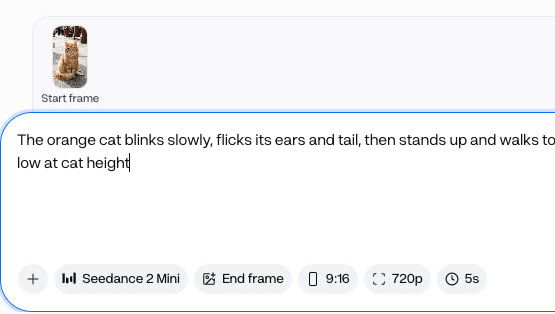
Press Start frame in the video generator and add a photo: one you took, or one made in the Image Generator. The photo is the clip's first frame, so the subject, the setting and the light are already set before anything moves.
Start frameUpload or make it - PhotoClip02
Say how it moves
Describe what moves and how the camera moves, in a line or two, such as "steam rises from the cup as the camera orbits slowly left." You do not describe what is already in the photo: the model starts from it and only adds the motion.
One or two linesMotion and camera - 03
Pick a model and a length
Every one of the 16 video models takes a photo, from 1 to 30 seconds depending on the model. 14 of them make the clip with sound, and Seedance 2 and Gemini Omni 1.1 Flash go up to 4K. The clip downloads with no watermark.
16 modelsUp to 4K
Animate a photo in 4 steps
- Step 1Add your photoAs the start frame.
- Step 2Describe the motionWhat moves, and the camera.
- Step 3Pick a model and length1 to 30 seconds, by model.
- Step 4Make the clipUp to 4K, by model.
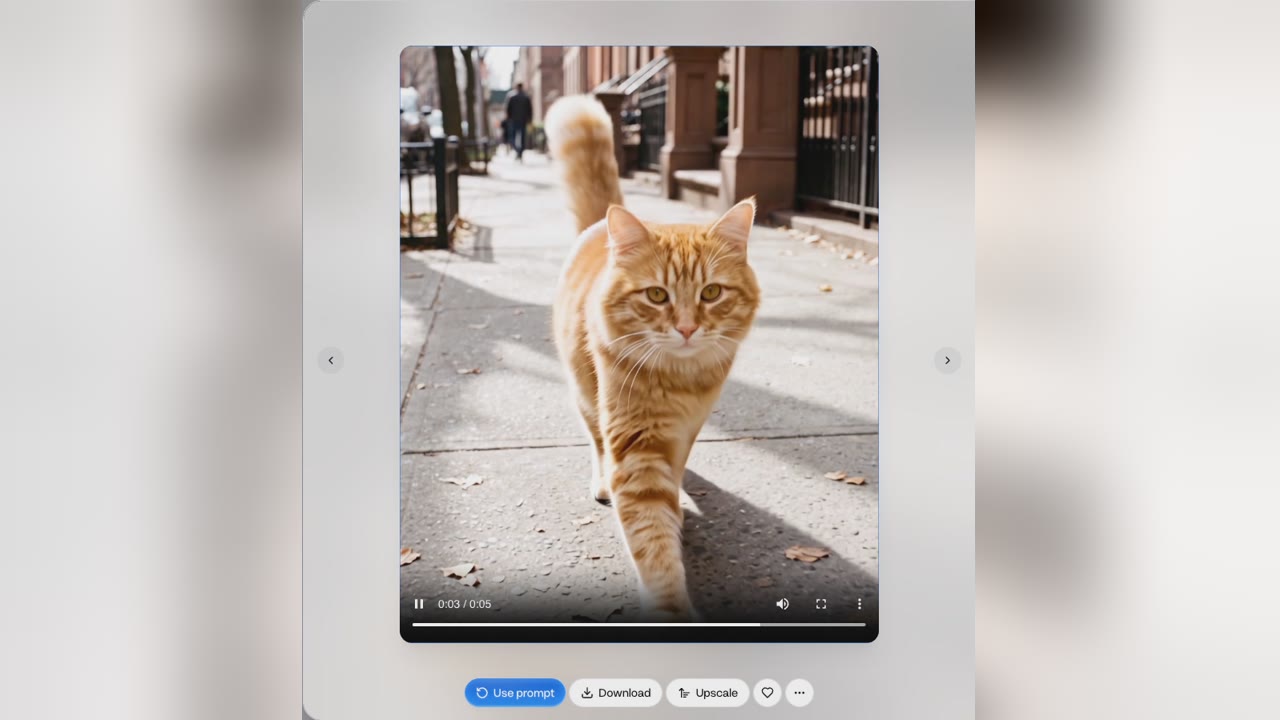
The photo goes in as the start frame, and the clip opens on it. To set the ending too, add an end frame on a model that takes one.
Two models on the same photo
- Grok Imagine 1.5 · 7 creditsKept the photo's 4:5 shape.
- Seedance 2 Mini · 7 creditsThe same photo and prompt, in 9:16.
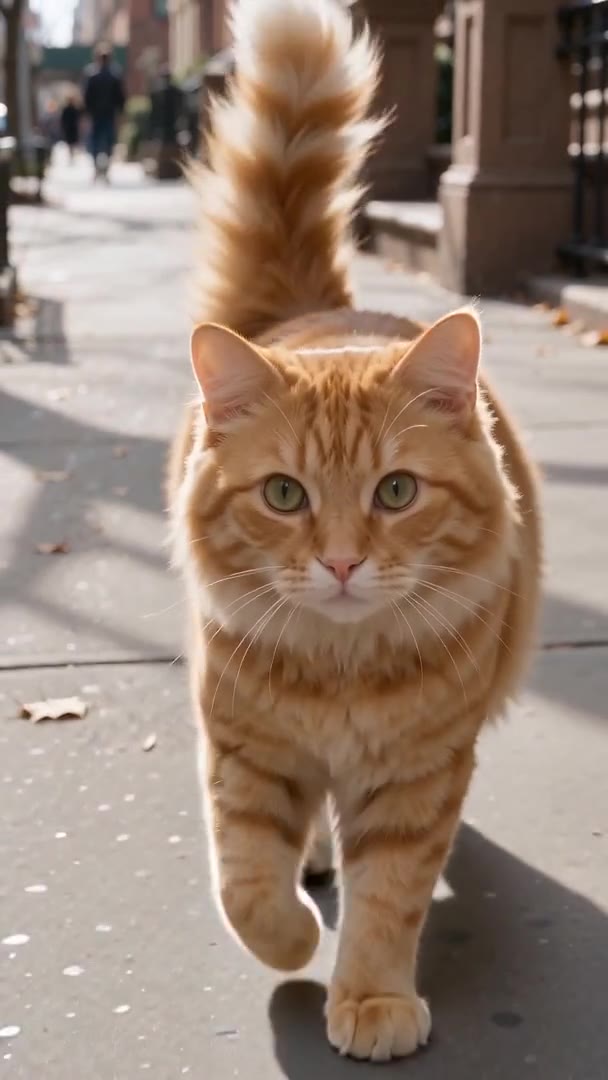
A clip from a photo is priced by the model, the length and the resolution. Both clips are the same cat photo and prompt; both prices are for a 5-second clip at 720p, and the photo adds nothing to the price of a text-only clip.
- Starter$0.32 a 5-second Grok Imagine 1.5 clip, about 28 clips a month
- Pro$0.27 a 5-second Grok Imagine 1.5 clip, about 71 clips a month
Dollar figures are plan credits at the yearly price per month. The generator shows the exact credit price before you start.
Tips for a photo that moves well
- Describe the motion onlyThe photo already shows what is there.
- Name the camera movePush in, orbit left, pull back.
- Keep people's motion smallA smile or a head turn reads naturally.
- Pick the photo's aspect ratioA photo in another ratio may be cropped.
- Set the ending with an end frameWhen the last shot has to be exact.
- Use photos you may useYour own, or people who agreed to it.
The prompt only has to carry the motion, because the photo already sets the subject, the place and the light. You keep the rights to what you make in Everygen, as long as you have the rights to the photo.
Animate it, don't just pan or zoom
- Pan and zoomPan and zoom the photoThe frame moves, but nothing in it does.
- Film itFilm the shot yourselfA shoot, a set and a camera move.
- Prompt onlyDescribe the scene from scratchThe product may not look like yours.
- From the photoAnimate a photoAnimate the photoYour exact picture, now moving.
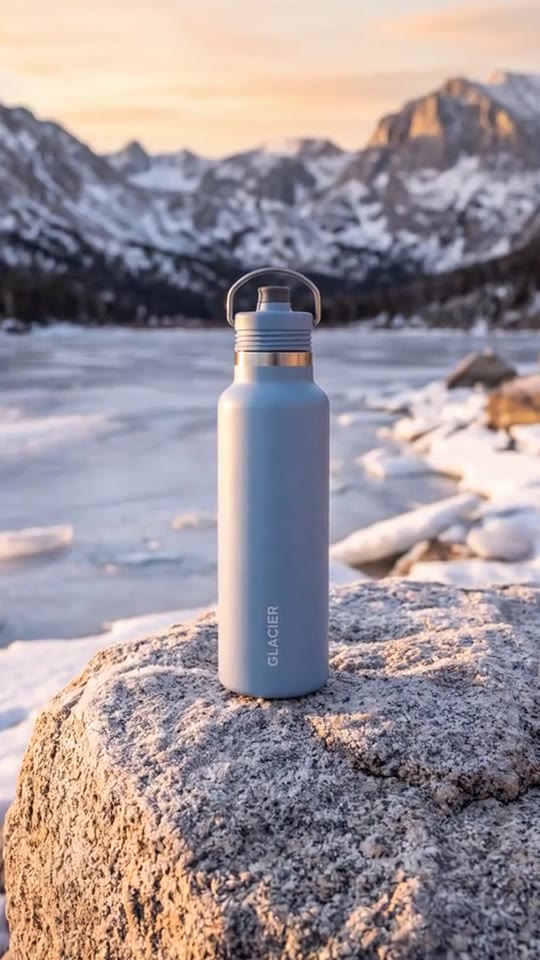
To make a video from one photo and keep it looking like that photo, use it as the start frame. The clip opens on your picture, so a product keeps its shape and colours. The pan-and-zoom card is an illustration made from the same photo, not an Everygen clip.
What people use it for with their own photos
- ProductAnimate a photoTurn a product photo into an ad clipSpin it, lift it, light it.
- PortraitBring a portrait to lifeA small smile, a laugh or a wave.
- ReelsMake a still post moveA photo becomes a short clip.
Start from the photo you already have. Animate only people who have agreed to it, or family you have the right to share.