How To Make Videos With AI Cloning
AI Cloning Reference Pack
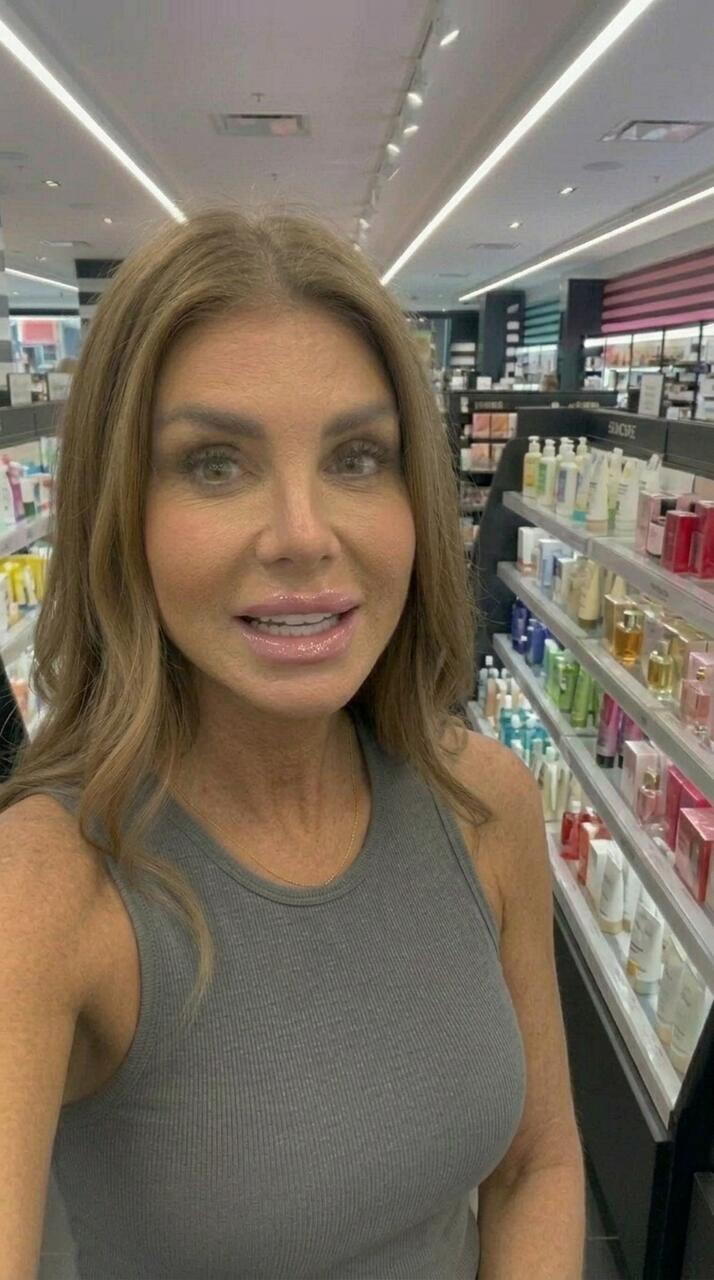
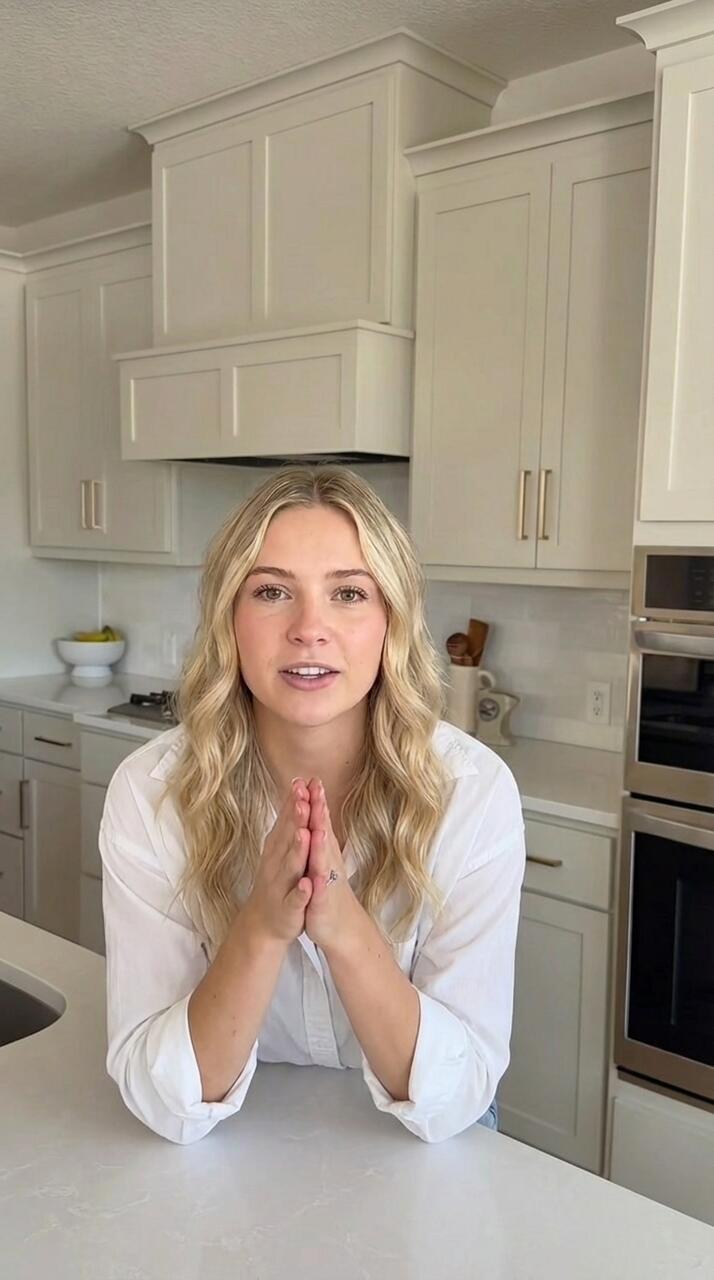
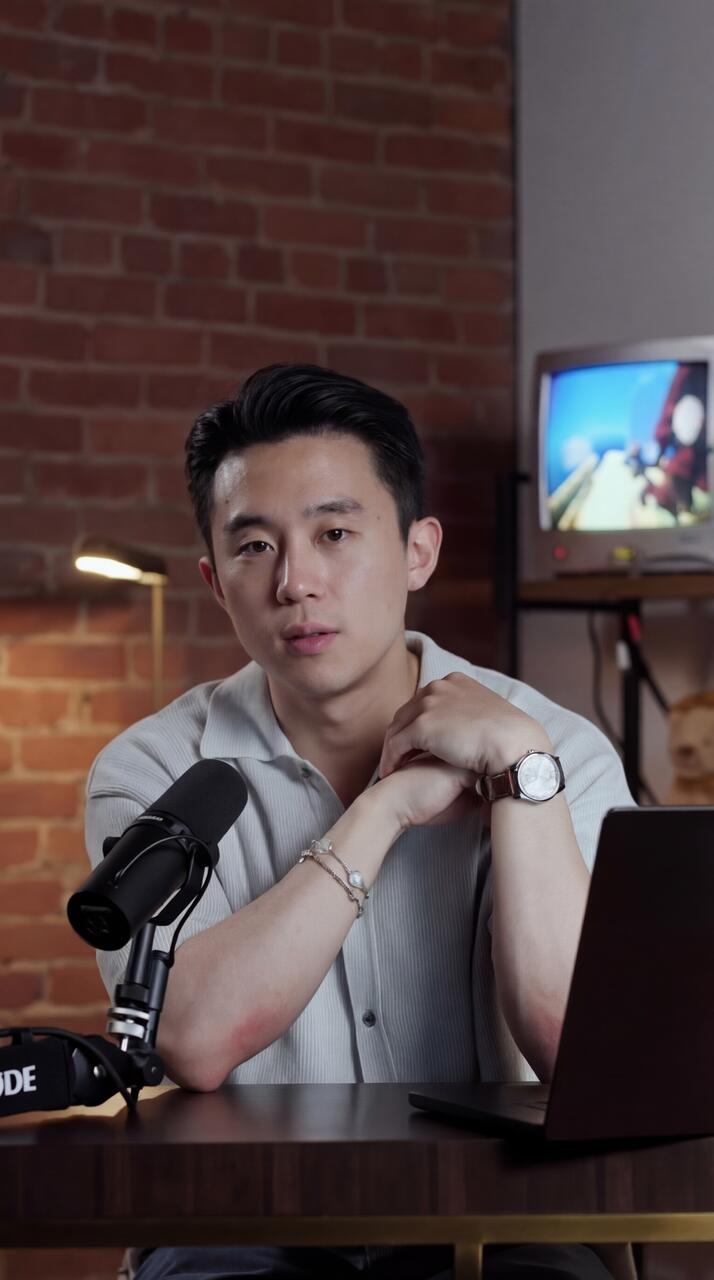
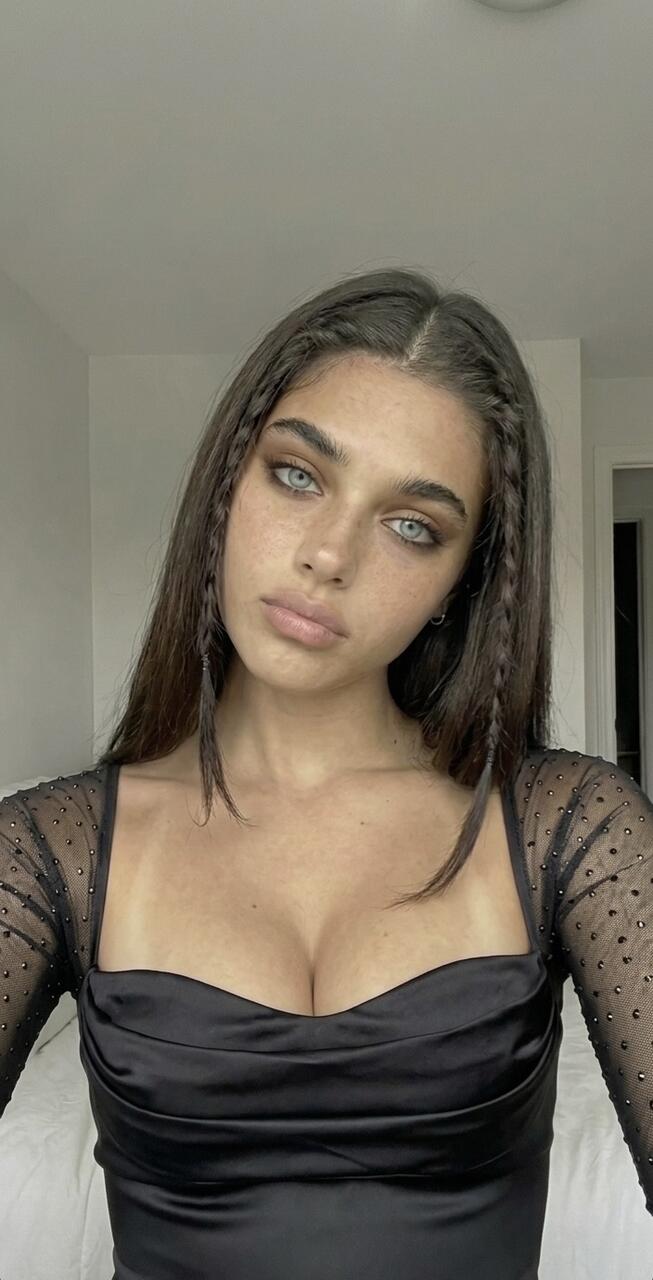
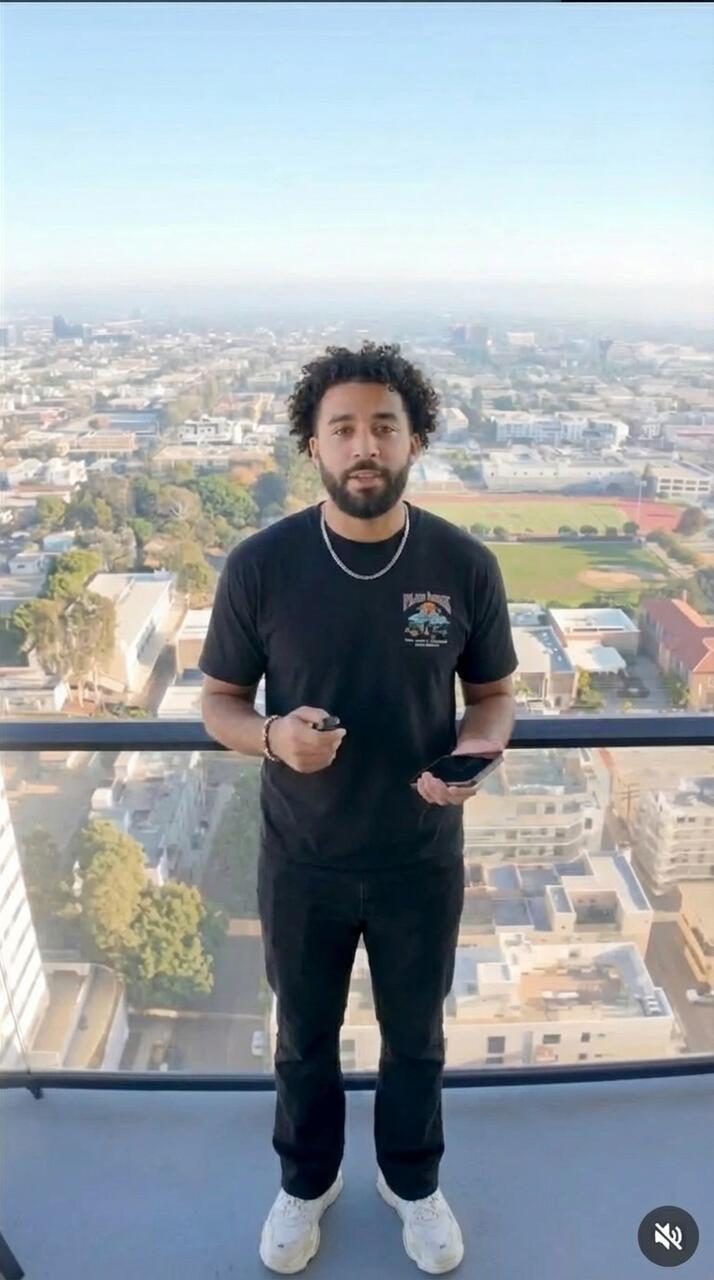
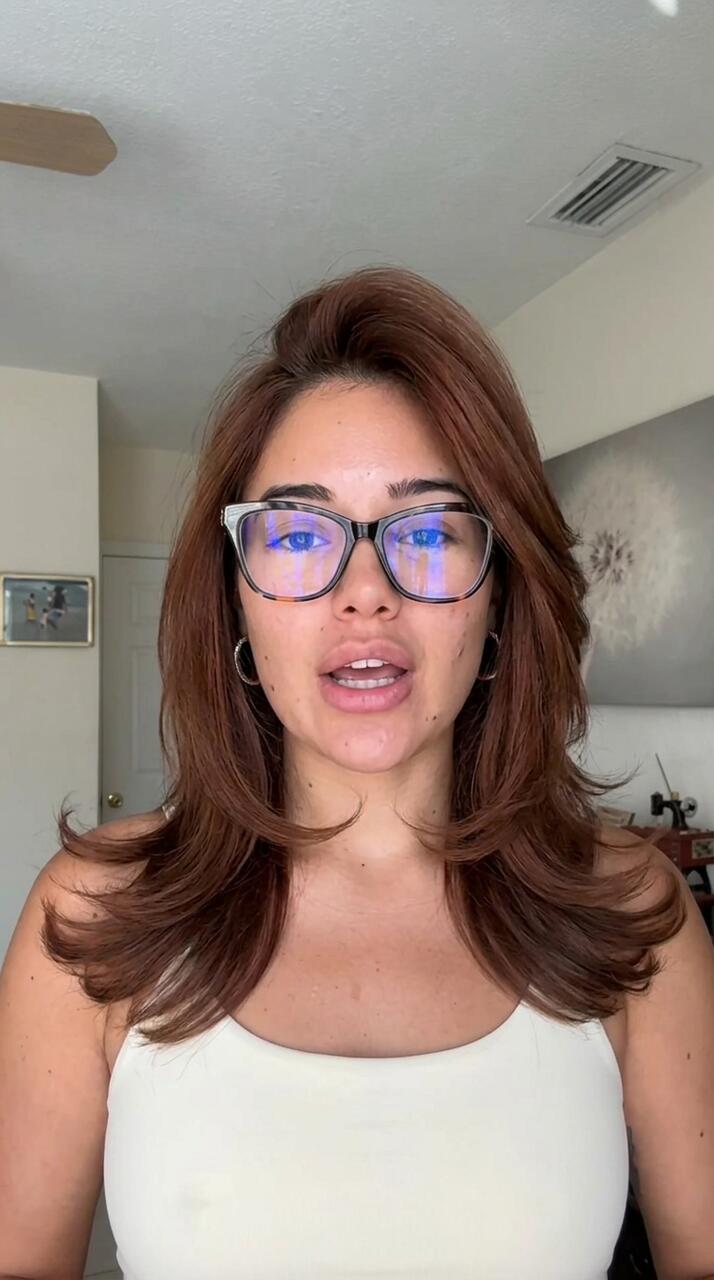
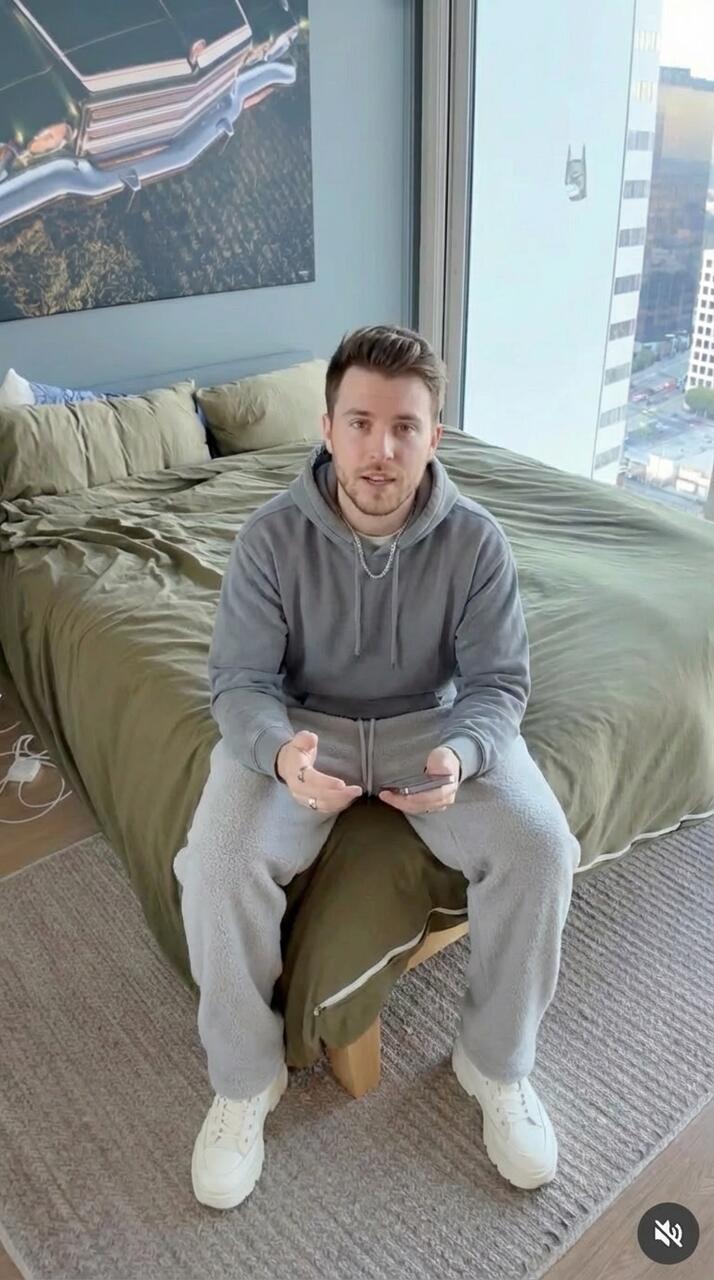
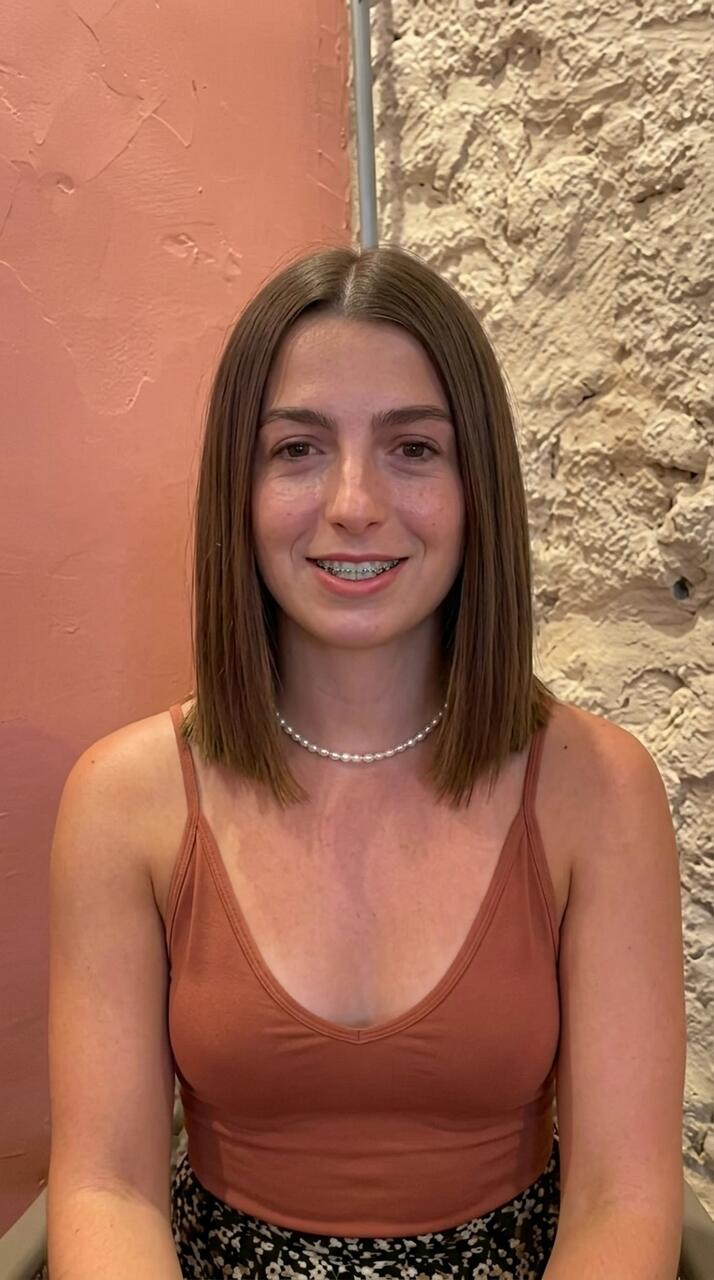
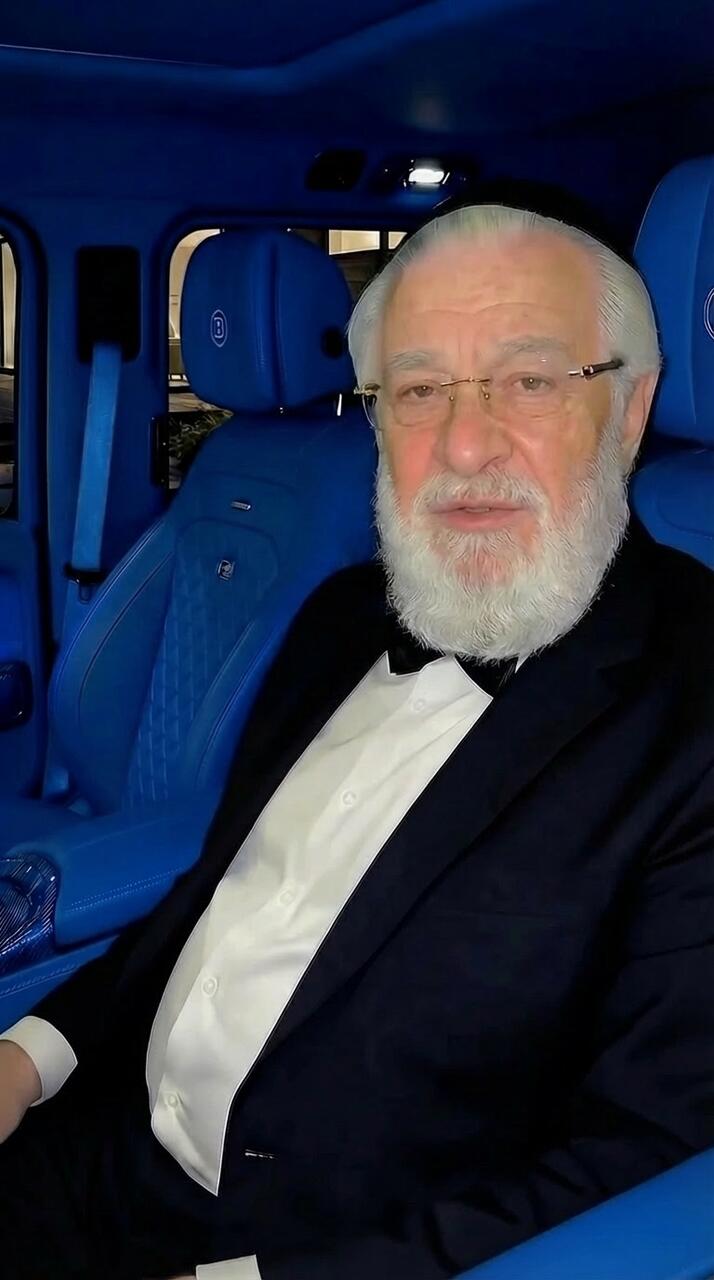
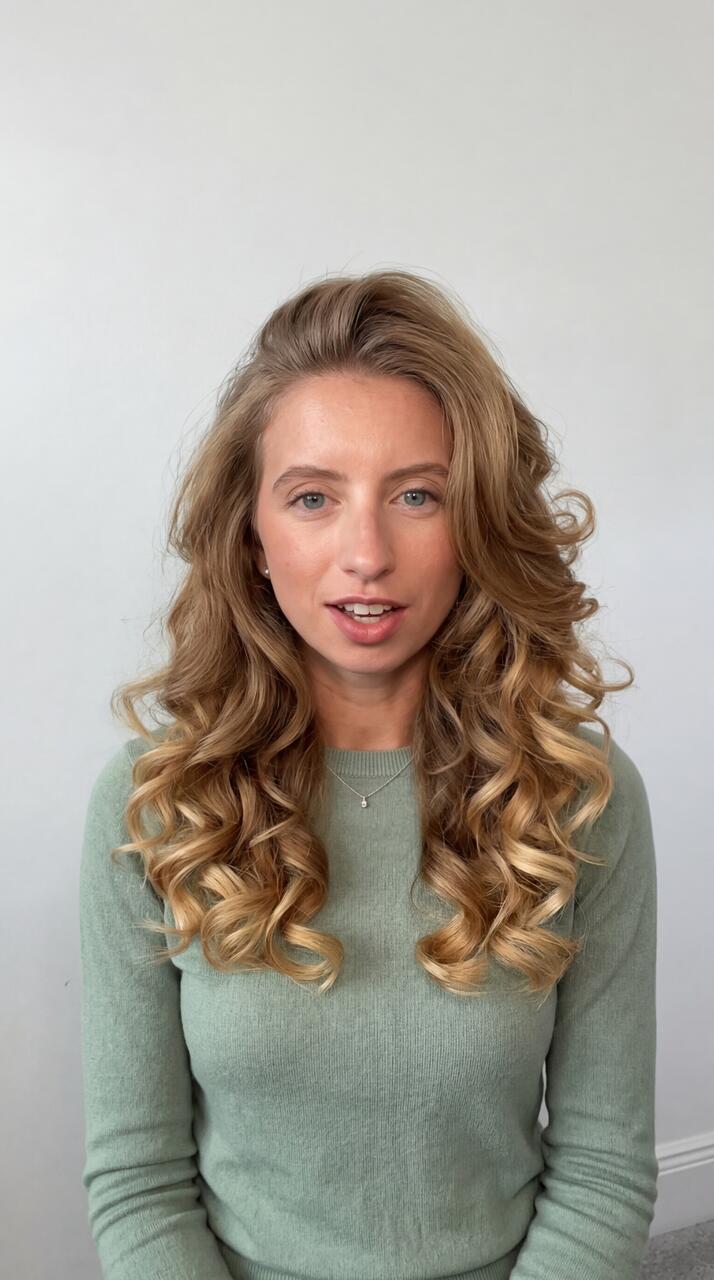
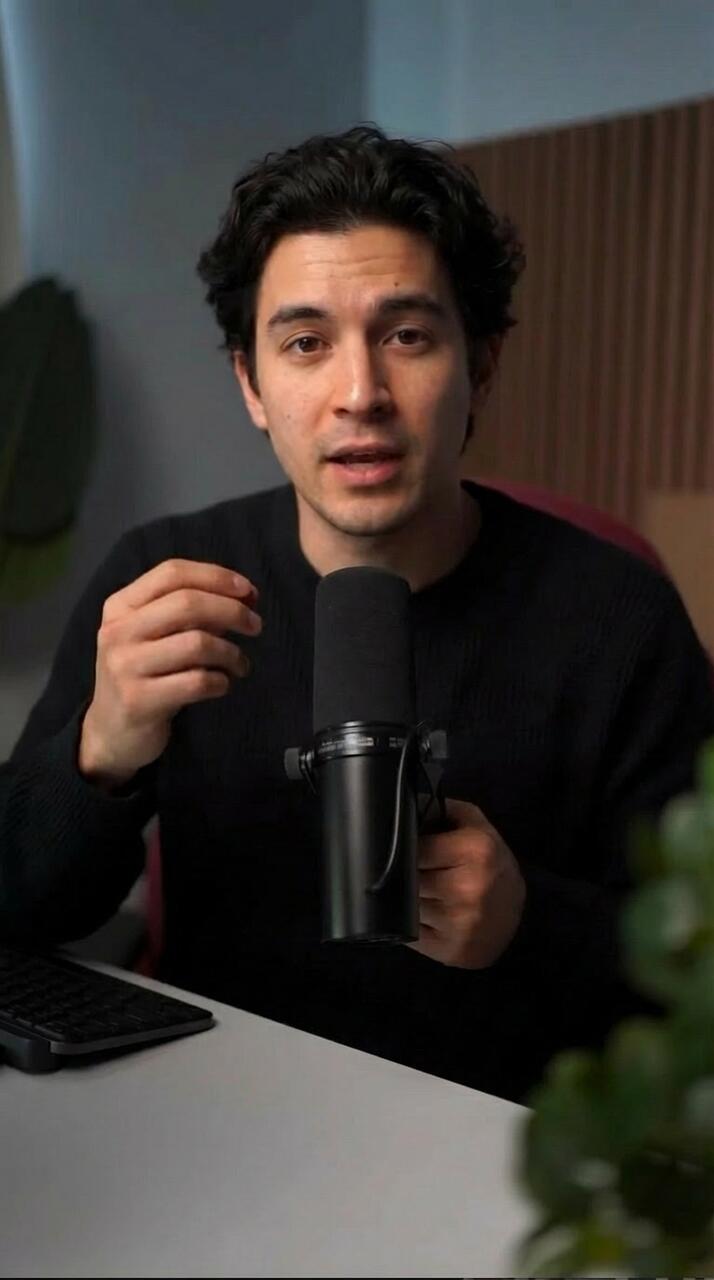
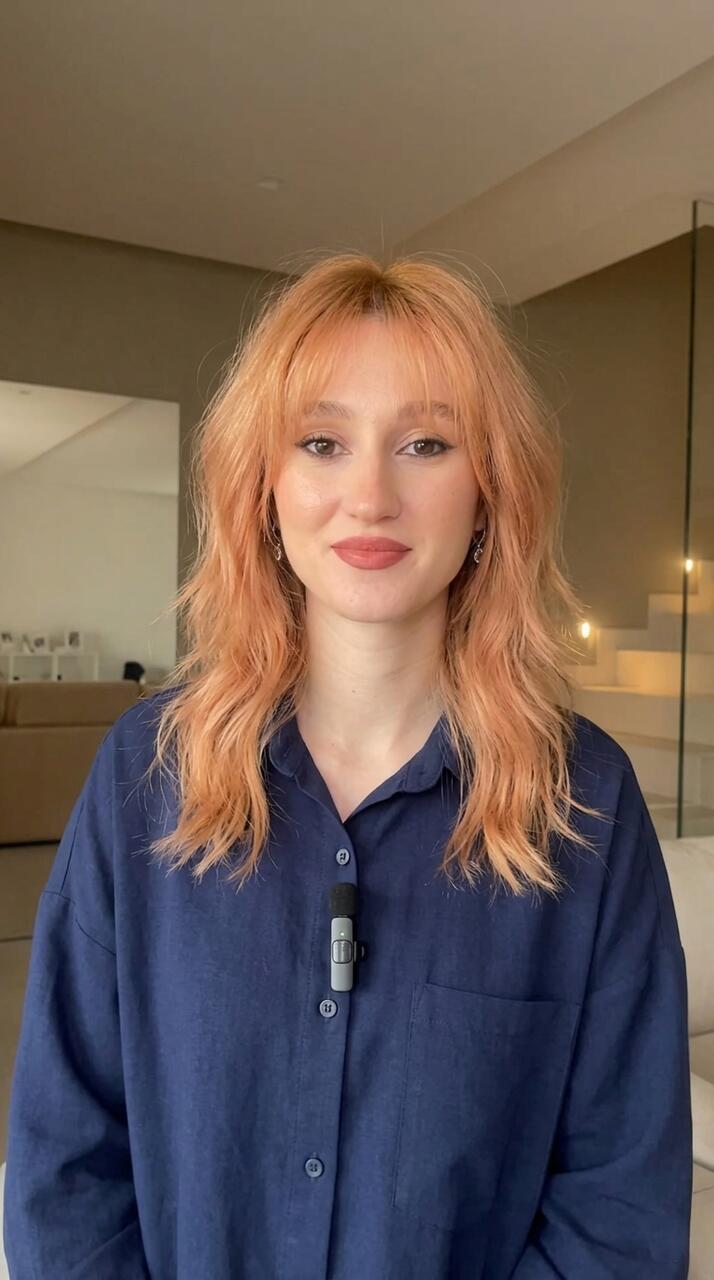
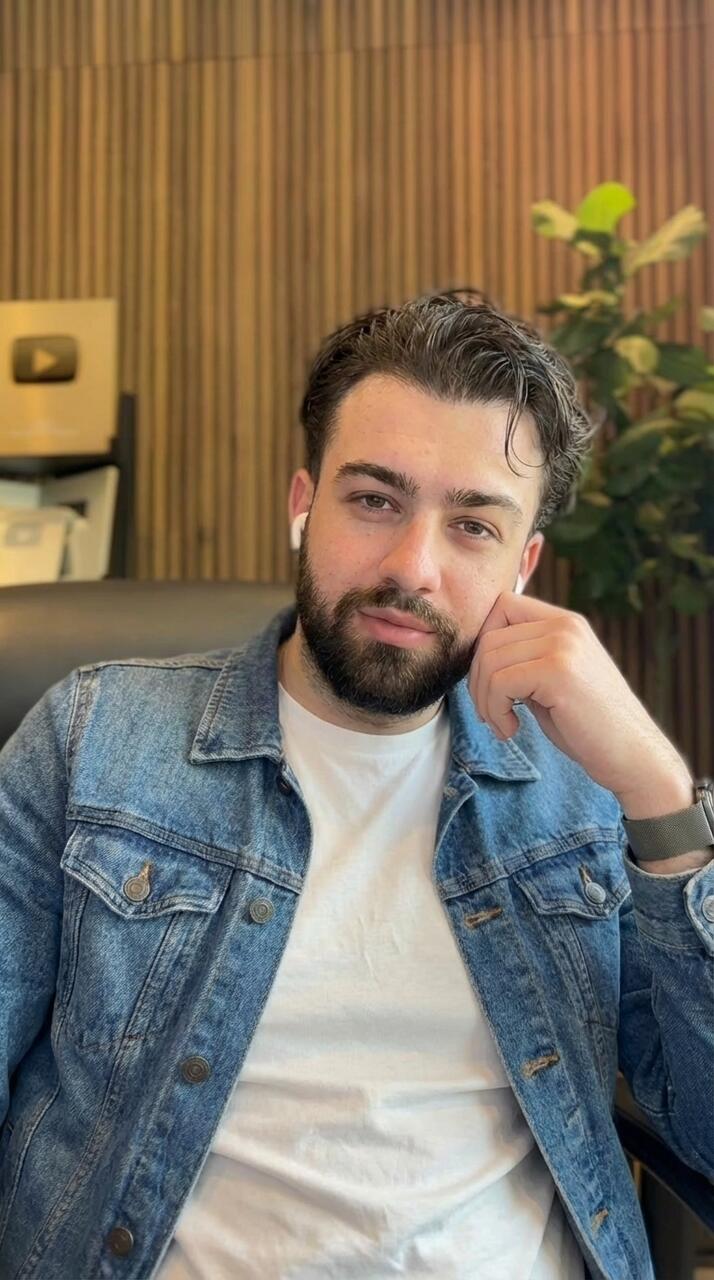
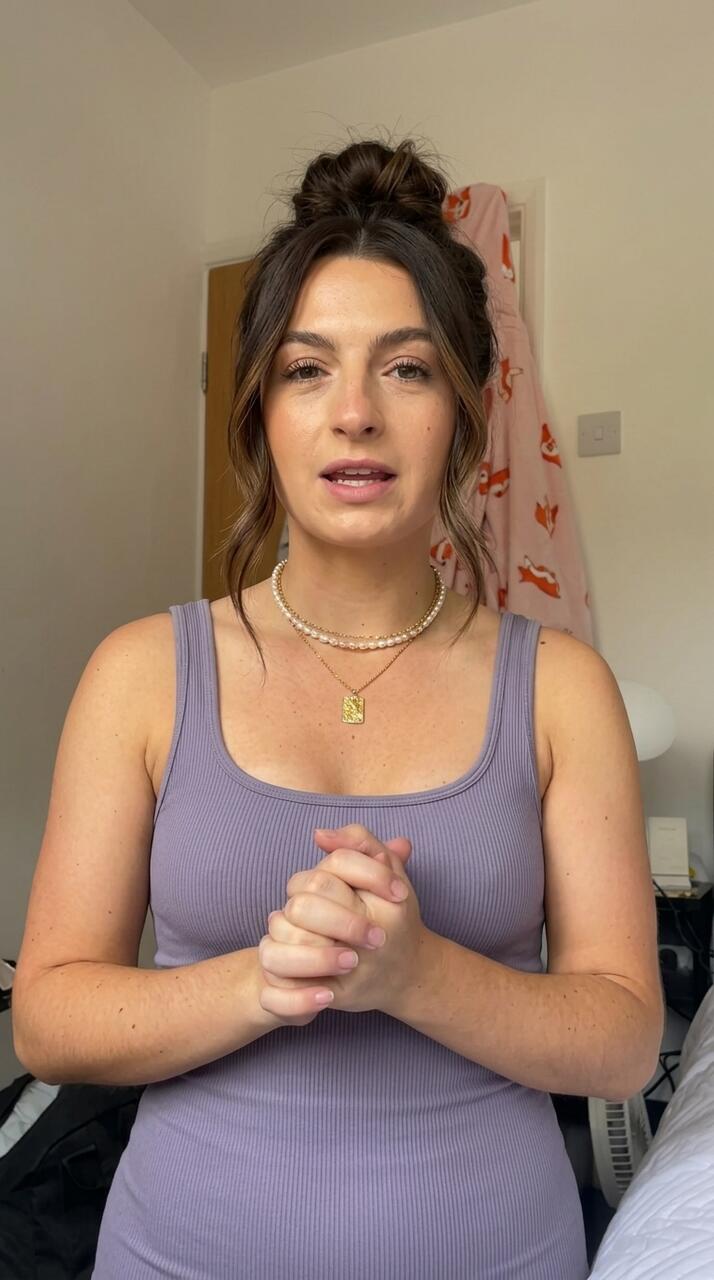
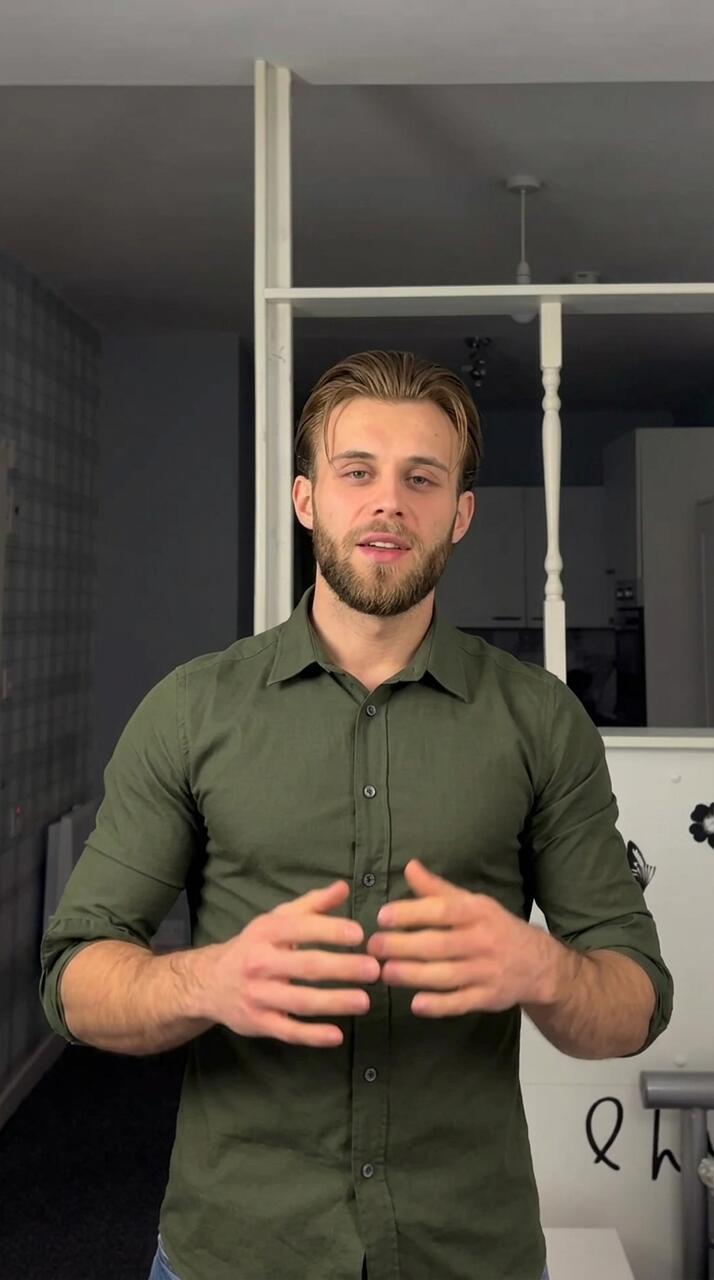
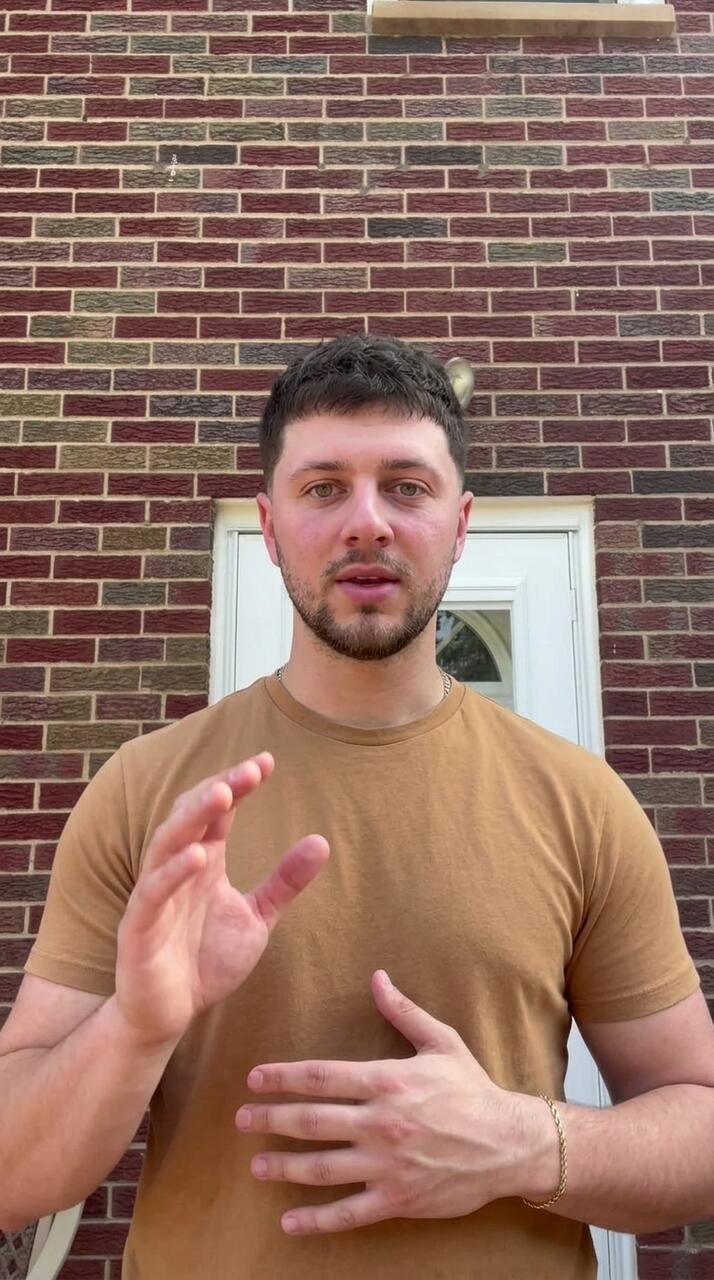
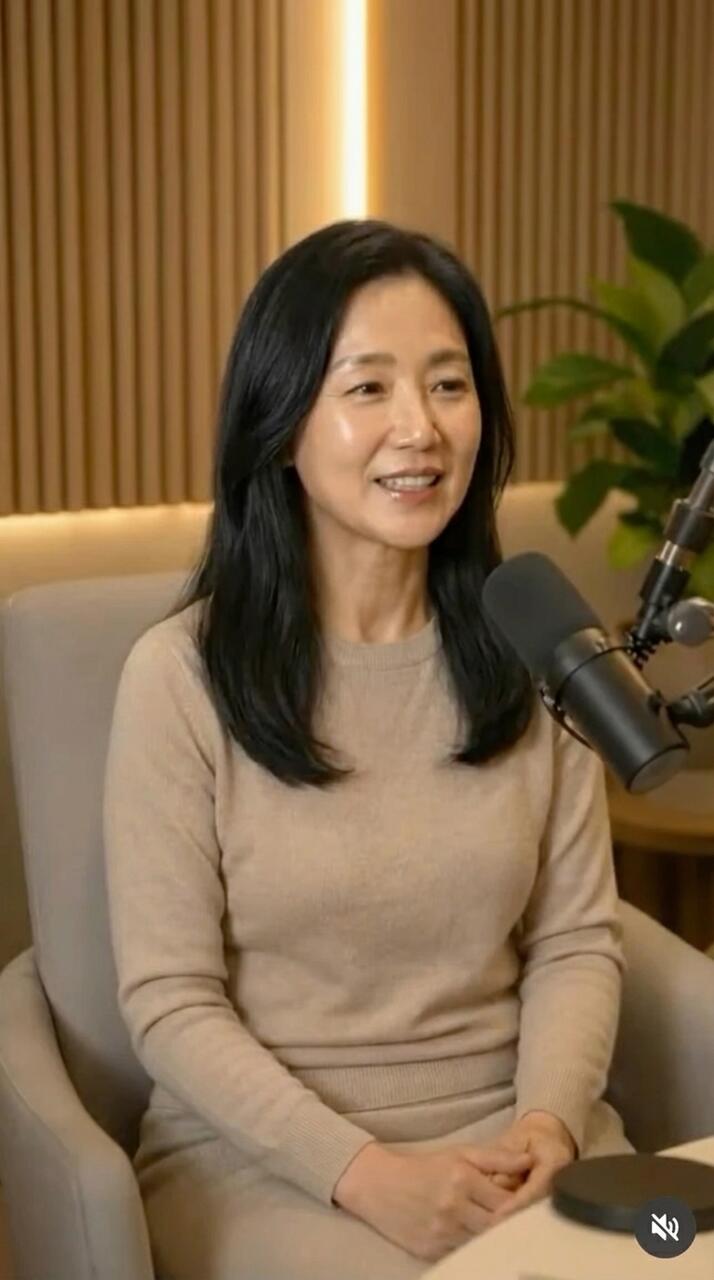
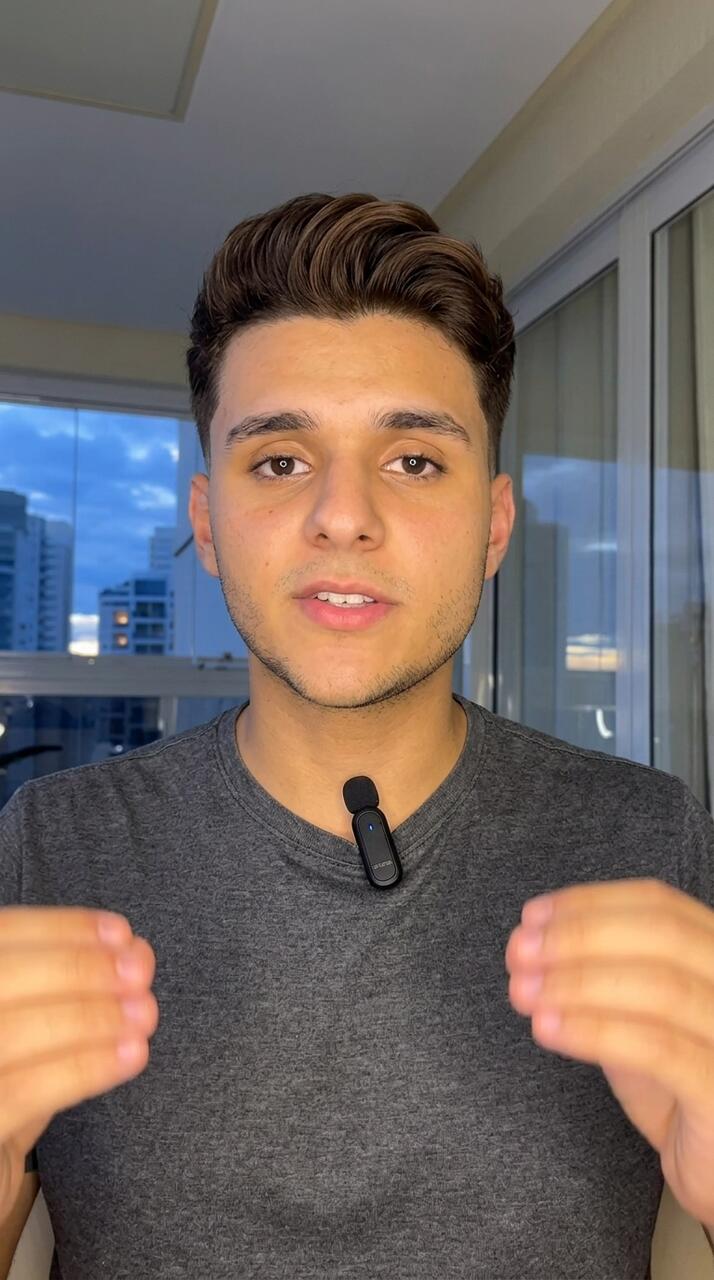
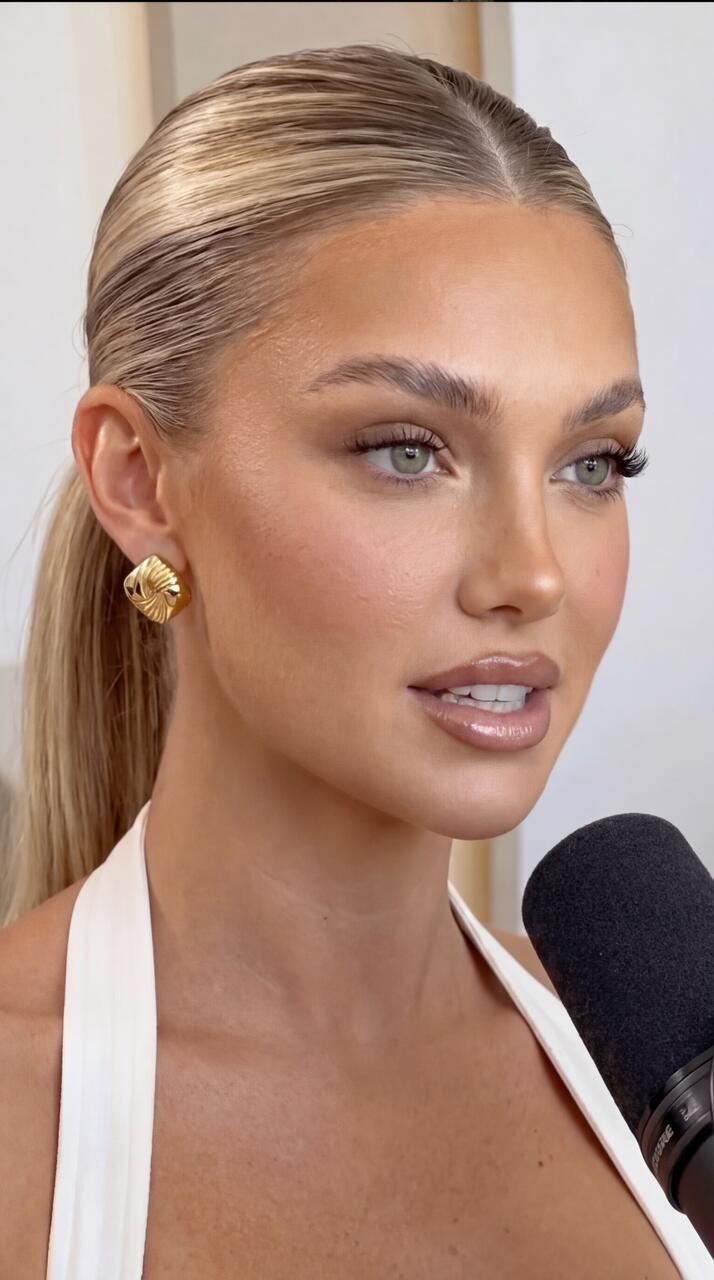
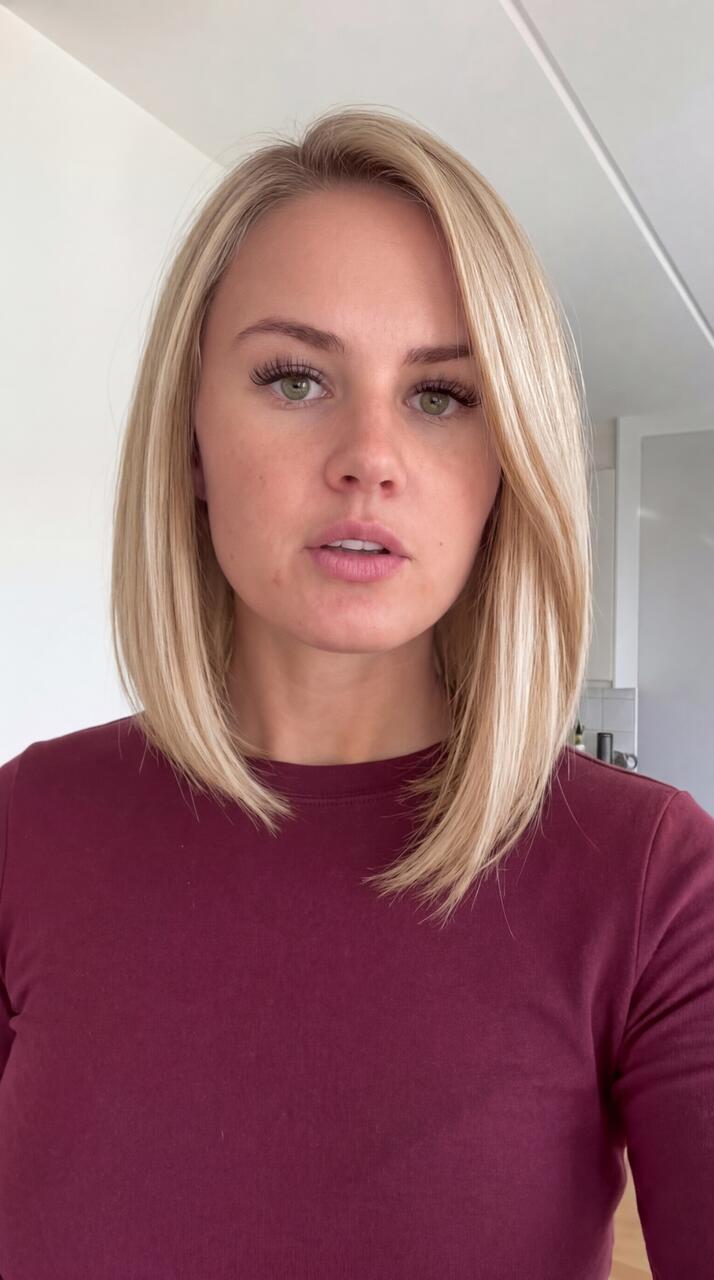
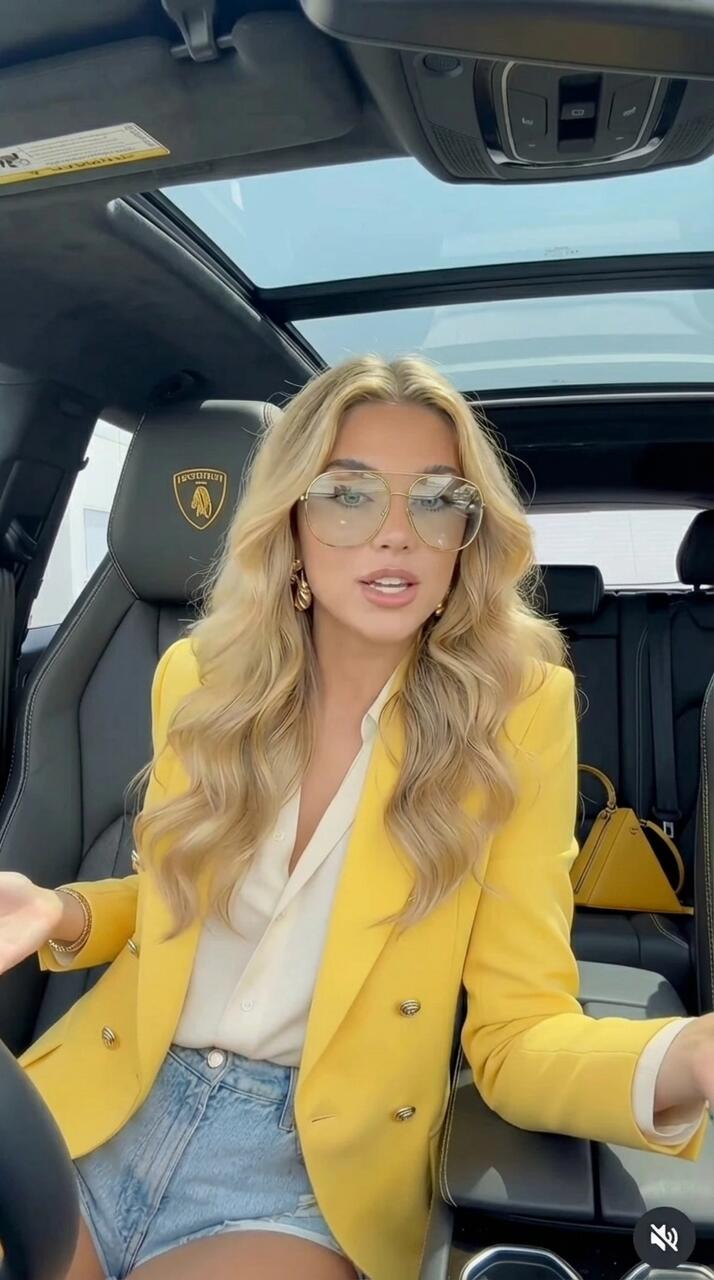
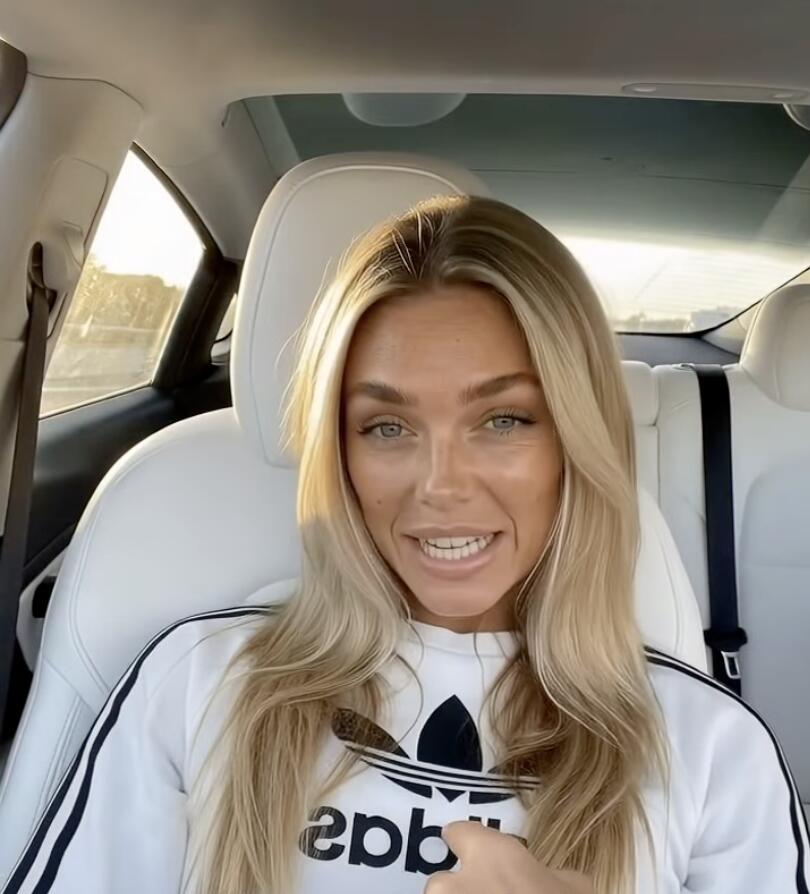
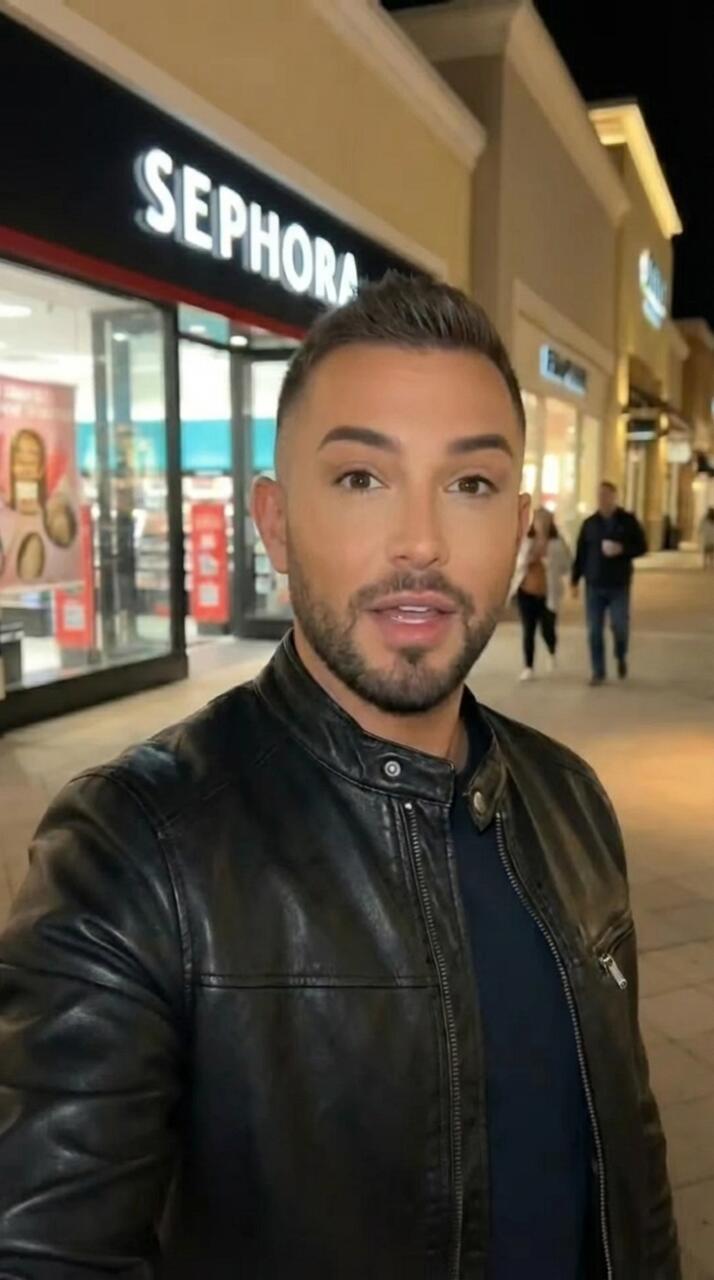
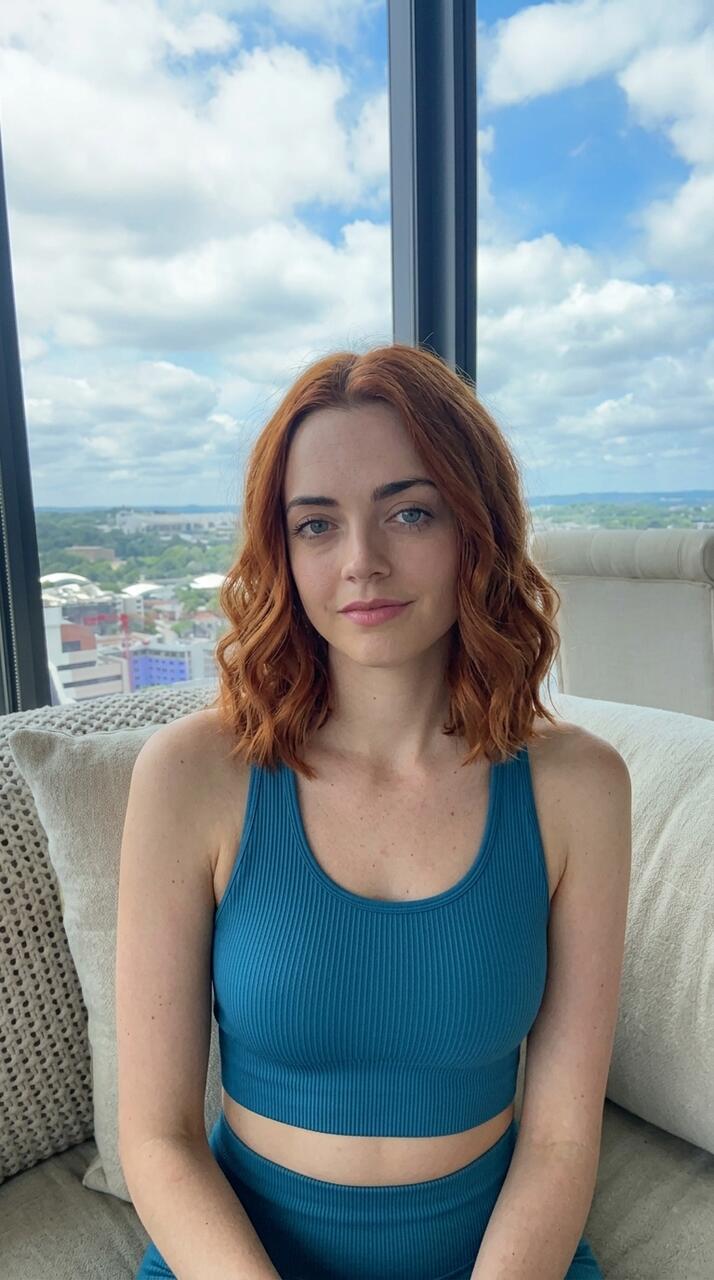
Each section is one clone from the tutorial: the settings it used, and the exact prompt where there is one.
Before you start
- Open AI Clone.
- Drop the motion video in the left box: the movement you want, such as waving or looking at the camera.
- Drop the character image in the right box: who should appear in the video.
- Pick 720p for a test, and leave the prompt box blank.
01AI Clone
Your motion on a preset character
What it does: Takes the motion from a clip you record and puts it on a ready-made character.
- Record a short clip of yourself, such as snapping and then looking at the camera, and upload it as the motion video.
- Press Choose preset on the character image and pick a character.
- Press generate and wait a couple of minutes.
02AI Clone
The same clone in your own room
What it does: Places the character inside the background of your recording, so the clone appears in the room you filmed.
- Pick a character, then press Match background. It takes about a minute.
- Press generate.
03AI Clone
A new character from a reference frame
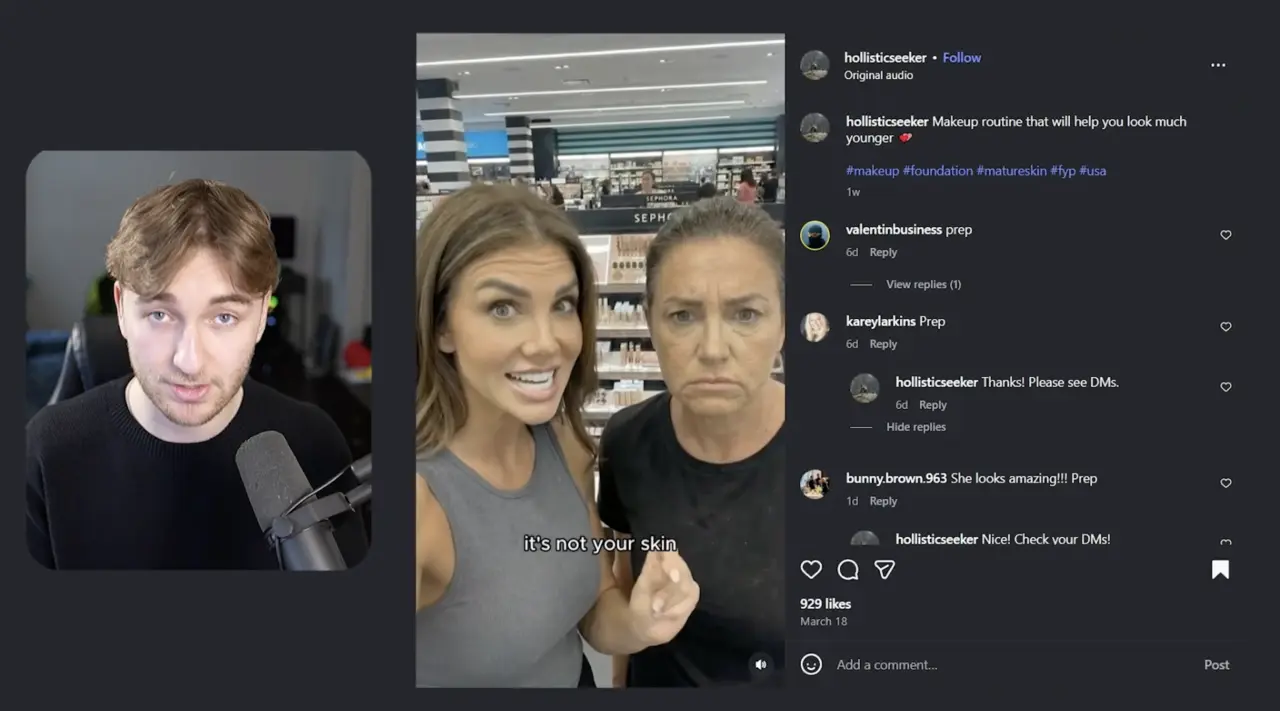
What it does: Makes a different person in the same pose, lighting and background as a video's first frame, then clones the video's motion onto them.
- Screenshot the first frame of a video you made or have the right to use.
- On the character image, press Generate with AI and paste the screenshot.
Remove all the text on screen and make her look like a different girl. Keep the pose, lighting and everything else the same, just replace her with a new girl.
Typed in the video, with the screenshot attached.
Press Select to use the new image. Trim the video to about 10 seconds, drop it in as the motion video, and press generate. For a video online, the Video Downloader saves it first.
Ready to clone your first video?
Record a short clip, pick a character, and press generate in AI Clone.